
# Filing
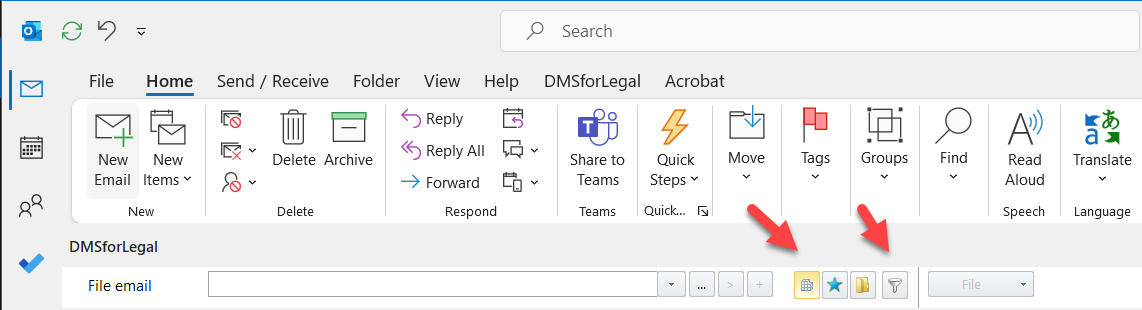
Filing settings control how DMSforLegal files emails into SharePoint: automatic filing based on the luggage tag (location tag) in the subject, default folders, the search sources of the filing toolbar, and the behavior when sending email.
Filing suggestions are configured in the Epona365 Office category.
# Mode
Options:
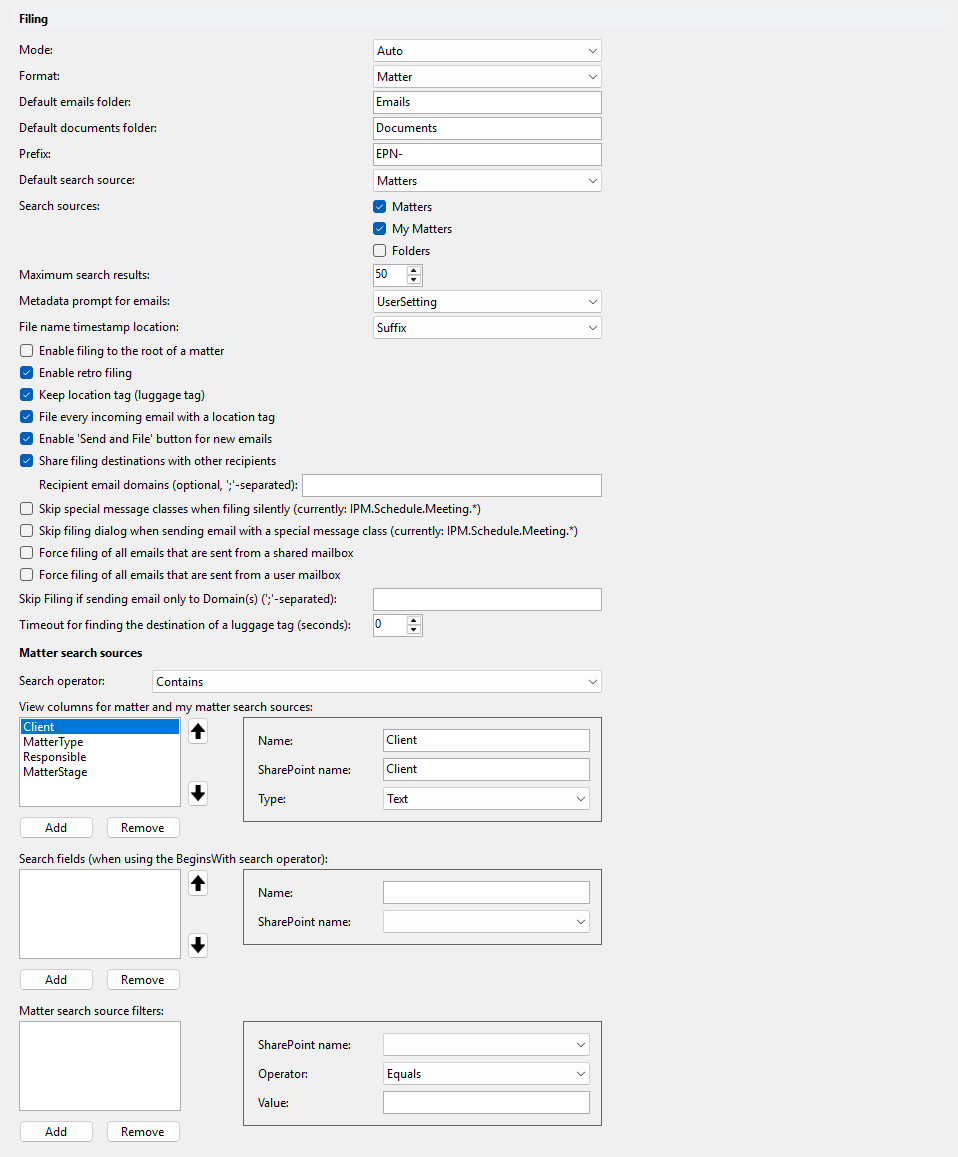
- Auto (default): DMSforLegal automatically files new messages (replies) based on the luggage tag found in the subject of the received message.
- Disabled: no automatic filing.
# Format
The format of the luggage tag in the subject of messages. Options:
- Matter (default): the matter code.
- ClientMatter: the client code and matter code.
- Folder: a reference to the Document ID of the folder.
Folder based filing needs an additional DMSforLegal management list named Folder IDs. This list holds a temporary list of IDs of folders used in folder based filing that SharePoint Search might not have crawled yet. When search crawls a folder ID (the Document ID of a folder), the list entry is deleted. Because folder based filing uses the Document ID of the folder, the Document ID feature must be active in SharePoint.
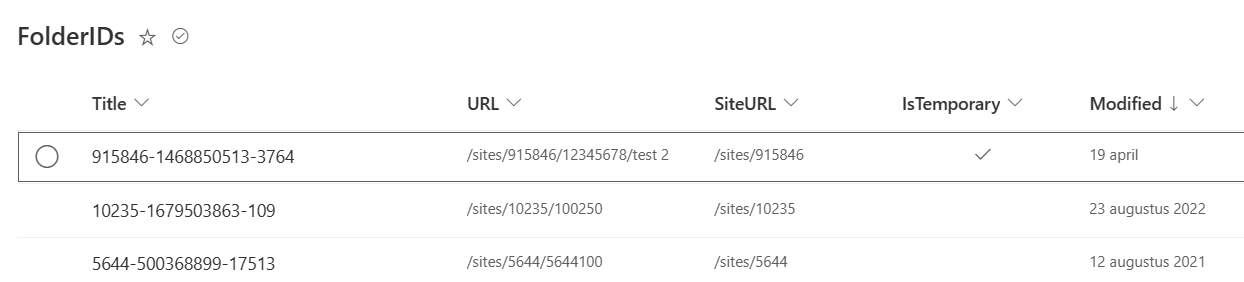
When you use Folder, set Default search source to Folders.
# Default emails folder
The default name of the folder that contains email messages. Email views differ a lot from document views (To, CC, Subject and Received columns), so most DMS designs store email messages separately from documents. Backslashes are converted to forward slashes.
# Default documents folder
The default folder used when saving attachments from an email to the DMS. If this folder is not found, the user can select the destination folder.
# Prefix
The luggage tag prefix in the subject when sending and filing an outbound message, for example DMS-. The prefix makes sure your DMS solution only files messages that contain your company prefix.
# Default search source
The default search source in the filing toolbar. Options: Matters (default) or Folders. When folder based filing is used (Format is Folder), select Folders.
# Search sources
Optional. Restricts or changes the scope of the search in the filing toolbar. Each source is a checkbox, off by default.
# Matters
Search all matters.
# My Matters
Search the user's My Matters.
# Folders
Search folders.
# Maximum search results
The number of search results returned. Default: 50. This value affects how fast search results are fetched and shown in the DMSforLegal Outlook interface.
# Metadata prompt for emails
Uploading an email to SharePoint has two phases: the upload of the email file, then the upload of the message metadata. When bulk uploading emails, users might not want to review the metadata for each upload. This organization-level setting controls the metadata prompt. Options:
- UserSetting (default): the user decides in their own DMSforLegal preferences. These are stored in the User Settings list, at the same URL as the My Matters or Matters lists, in a subfolder per user with the settings as a JSON message.
- Enabled: always show the prompt.
- Disabled: never show the prompt.
# File name timestamp location
DMSforLegal saves an uploaded email as a .msg or .eml file named SUBJECT YYYYMMDD HHMM.msg by default. Options:
- Suffix (default): the timestamp is at the end of the file name.
- Prefix: the timestamp is at the start of the file name. This is sometimes used in legal insolvency cases, where all captured files are archived in chronological order by file name.
# Enable filing to the root of a matter
Emails saved in the root folder of the document library are easily overlooked. Turn this off to prevent filing emails to the root of the matter (document library). Default: on. Add all sets this to off.
# Enable retro filing
Retro filing is similar to automatic filing of messages with a luggage tag in the subject. Automatic filing is triggered when a new email arrives. Retro filing checks older messages that have a luggage tag in the subject and have not been filed yet, and files them about 30 seconds after Outlook starts. When retro filing completes successfully, the retro filing date in the user registry is updated, so the next check only looks at new items. Default: on.
# Keep location tag (luggage tag)
When a user sends an email, DMSforLegal can file it into a SharePoint destination (matter) and adds a luggage tag to the subject. A reply from the recipient also contains this luggage tag. Automatic filing then files the reply into the same destination, if the user has write permission there. The message is flagged as FILED in its category field. Next, the luggage tag is removed from the inbound reply, so the reply is not filed again. Turn this setting on to keep the luggage tag instead. Default: off.
# File every incoming email with a location tag
Files all incoming messages that have a luggage (location) tag. Normally only replies are filed. Default: off.
# Enable 'Send and File' button for new emails
Normally DMSforLegal shows the Sent Items dialog each time a message is sent. Users of OpenText Hummingbird are used to a separate Send & File action. With this setting on, Send just sends, and the user can choose Send & File instead. Default: off.
# Share filing destinations with other recipients
Creates filing tasks for other users in the CC of a received and filed message. Default: off.
This needs an extra DMSforLegal management list named Filing Locations. When you turn this setting on, the Configuration part of DMS Configuration Center suggests creating this list.
DMSforLegal 2023 Q2 and later does not automatically create a subfolder for each colleague. It only uses an existing subfolder, to avoid creating subfolders for colleagues who do not use DMSforLegal. A separate mechanism creates a Filing Locations subfolder for users who use DMSforLegal.
Example of the Filing Locations list:

# Recipient email domains (optional, ';'-separated)
The email domains used to decide for which recipients a filing task is created. Separate multiple domains with ;. Only available when Share filing destinations with other recipients is on.
# Skip special message classes when filing silently (currently: IPM.Schedule.Meeting.*)
When folder synchronization files the emails of a mailbox subfolder, it can encounter meeting requests. Filing meeting requests is possible, but triggers warnings. This setting suppresses them. Default: off.
# Skip filing dialog when sending email with a special message class (currently: IPM.Schedule.Meeting.*)
When the message is a meeting invite, the Sent Items dialog for filing is not shown. Users can still select the message in Sent Items and file it with the filing toolbar. Default: off.
# Force filing of all emails that are sent from a shared mailbox
Forces the Sent Items dialog when a user sends from a shared mailbox. DMSforLegal 2023 Q2 and later. Default: off.
# Force filing of all emails that are sent from a user mailbox
Forces the Sent Items dialog when a user sends from their own mailbox. DMSforLegal 2023 Q2 and later. Default: off.
# Skip Filing if sending email only to Domain(s) (';'-separated)
Prevents filing when the subject contains a luggage tag but the email is only sent to these domains, for example internal email. Separate multiple domains with ;.
# Timeout for finding the destination of a luggage tag (seconds)
Default: 0, which means no timeout: DMSforLegal keeps trying to find the matter destination of the luggage tag when a user replies to or forwards an email with a luggage tag. For clients where SharePoint search performance varies, looking up a folder ID based luggage tag sometimes took several seconds. DMSforLegal 25.3.3 and later uses a faster search strategy. If search does not respond, set a timeout, for example 4 seconds.
# Matter search sources
Configure fields from the Matters list to scope down matter searches in the filing toolbar.
# Search operator
Options:
- Contains (default).
- BeginsWith: a fallback for query threshold problems. Some designs with 20+ submatters ran into query thresholding problems. When you select BeginsWith, configure the fields to query in Search fields (when using the BeginsWith search operator).
# View columns for matter and my matter search sources
The result columns of the Matters and My Matters search sources. Overrides the view columns of Matter search for filing only. Available when the Matters or My Matters search source is on, or when Default search source is Matters.
| Property | Description |
|---|---|
| Name | The column name. |
| SharePoint name | The internal name of the field in the Matters list. |
| Type | The field type, for example Text. |
# Search fields (when using the BeginsWith search operator)
One or more Matters list fields that are queried with BeginsWith. Only available when Search operator is BeginsWith. Each field triggers a separate query, so keep the number of fields to a minimum.
| Property | Description |
|---|---|
| Name | Read-only. Filled in from the display name of the selected field. |
| SharePoint name | The Matters list field. The dropdown offers indexed text fields (all text fields on SharePoint 2010) and lookup fields. |
Each configured field results in a separate query to SharePoint:

# Matter search source filters
Filters that reduce the number of results of a matter search, for example to return only active matters (MatterStage = 'Open'). Only available when Search operator is Contains.
| Property | Description |
|---|---|
| SharePoint name | The Matters list field to filter on. |
| Operator | Equals (default) or NotEquals. |
| Value | The value to compare with. An empty value is shown as [empty] in the list. |
← Task queue Favorites →