# Document properties
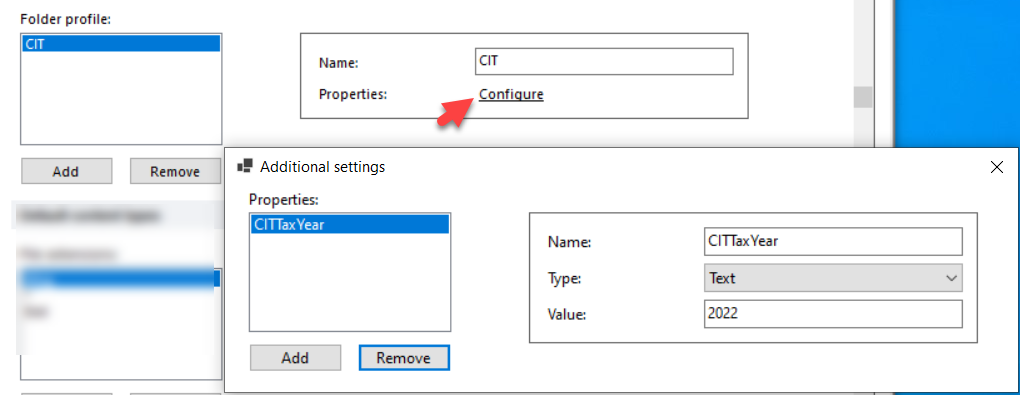
Document properties are a key part of the DMS configuration. They map DMSforLegal document properties to the SharePoint fields of the destination and to the SharePoint Search managed properties. Document properties are set when a document or email is uploaded to a SharePoint document library. Extra metadata improves searchability, list views and sorting.
This category also holds the metadata prompts, the Epona365 Web Details panel cards, and default values per user (profile) and per folder name.
# Show properties ordered by name
When SharePoint site columns are created, they get an ID. By default document properties are ordered by this ID, which follows the order of creation. Turn this on to sort document properties alphabetically by name. Default: off.
# Show email properties
By default, email field values such as To, From, Subject and Received are hidden when a user right-clicks an email in DMSforLegal and chooses Document Properties. Turn this on to also show the email field values. Default: off.
# Show properties that are in the _Hidden group
SharePoint administrators can place site columns (document properties) in a _Hidden group. By default DMSforLegal follows SharePoint and hides these fields. Turn this on to show them anyway. Default: off.
# Metadata prompt in Outlook
Controls the document properties prompt when content is uploaded to SharePoint from Outlook. Options:
- UserSetting (default): follows the user's preferences in the DMSforLegal client, saved in the User Settings list.
- Enabled: the document properties are shown each time content is uploaded.
- Disabled: no prompt. The prompt still appears when mandatory fields have no value.
For the prompt when filing emails, see Metadata prompt for emails.
# Metadata prompt in Word, Excel and PowerPoint
Controls the document properties form when saving content to SharePoint from Office. Options:
- Only prompt if necessary: the form only appears when mandatory values are missing or values are incorrect.
- Always prompt: the form always appears.
Default when not set: Always prompt. Add all sets this to Only prompt if necessary.
# Properties
The list of mapped document properties.
| Property | Description |
|---|---|
| Visible | Shows or hides the property on DMSforLegal forms. Default: on. Required fields that are not visible can cause problems when uploading documents to a destination. |
| Ignore | The property value is not uploaded or processed. Default: off. |
| Name | The name of the document property in DMSforLegal. Cannot be changed for the built-in email properties. |
| SharePoint name | The name of the field in SharePoint. |
| Managed property | The SharePoint Search managed property of the field. |
| Owner | Document (default) or Folder. See below. Cannot be changed for the built-in email properties. |
| Default value from | Another mapped property to take the default value from. Cannot be changed for the built-in email properties. |
Owner needs some explanation. When a new item arrives in the destination, it can inherit the default column values of the document library from the destination folder (Folder), or use the value from the document itself (Document).
# Details panel cards
The cards of the document Details panel in Epona365 Web, in the order the panel shows them from top to bottom. Each card is either one of the built-in sections or a named group of mapped properties. Use the arrows to change the order.
| Property | Description |
|---|---|
| Built-in | Makes the card a built-in section: (Properties table) (every property that is not on a card of its own) or (Permissions) (the Owner / Write / Read permissions section). Can only be changed while the card has no card name and no properties. |
| Card name | Heading shown above the card. Not available for built-in cards: Epona365 Web shows their headings in the user's language. |
| Properties | The mapped properties on the card, in the order they are shown. Pick each Property from the mapped document properties. Not available for built-in cards. |
Notes:
- Removing a built-in card does not hide its section. The section returns to its default position.
- When all cards are removed, Epona365 Web shows the Summary property, so the panel is never empty. Summary is not offered in the property picker.
- Properties added in the same session only appear in the property picker after the configuration is reloaded.
# Default profile properties
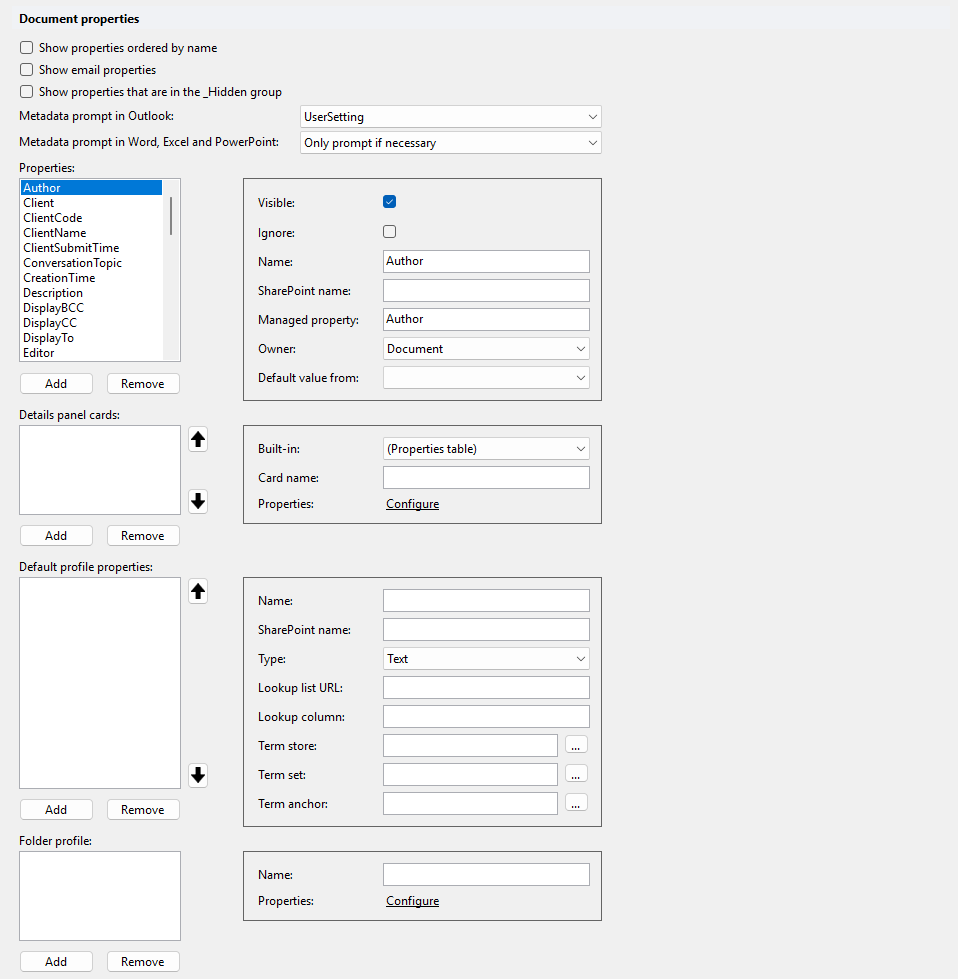
Use default profile properties when users often fill in the same value in a document property. For each property you define here, users can set a personal default value. When new content is uploaded and the field is empty, the default value from the user's profile is filled in. This saves manual input.
For example, define a property Accountmanager. Each time a user needs to fill in the Accountmanager field, their default value is used.
| Property | Description |
|---|---|
| Name | The name shown to the user. |
| SharePoint name | The SharePoint field. |
| Type | The field type, for example Text, User, Lookup or Taxonomy. |
| Lookup list URL | Lookup fields only. The URL of the lookup list. |
| Lookup column | Lookup fields only. The column of the lookup list. |
| Term store | Taxonomy fields only. Use ... to select the term store. |
| Term set | Taxonomy fields only. Use ... to select the term set. |
| Term anchor | Taxonomy fields only. Use ... to select the anchor term. |
Users set their default values in Outlook: on the DMSforLegal menu, choose Options and open the Profile tab. The configured profile properties are listed there.
# Folder profile
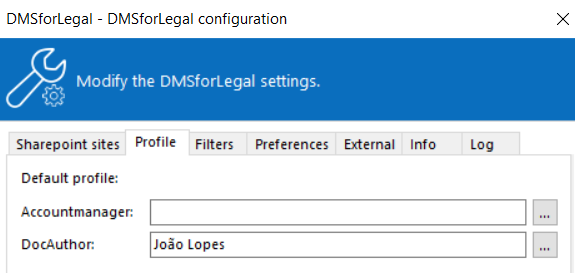
Sets default values for document properties in folders with a specific name. For example, whenever the folder name is CIT (Corporate Income Tax), the document property CITTaxYear gets the default value 2022.
| Property | Description |
|---|---|
| Name | The folder name. |
| Properties | Opens the list of properties for this folder: Name, Type (Text or Taxonomy) and Value. For taxonomy properties, use ... to select the term. |