
# Default content types
Suggests a content type by default, based on the file extension or on the name of the selected folder. This reduces user input when saving files in the DMS.
A content type is a file type with a group of fields. The default content type is Document, but you can define a child content type of Document, for example Identity Document, with an extra field IdentityType where the user enters whether it is a passport or a driver's license.
There are several ways to set the content type used when uploading content to SharePoint. Predefining the content type lets you suppress document properties dialogs. An alternative is to offer only one content type in the destination.

# File extensions
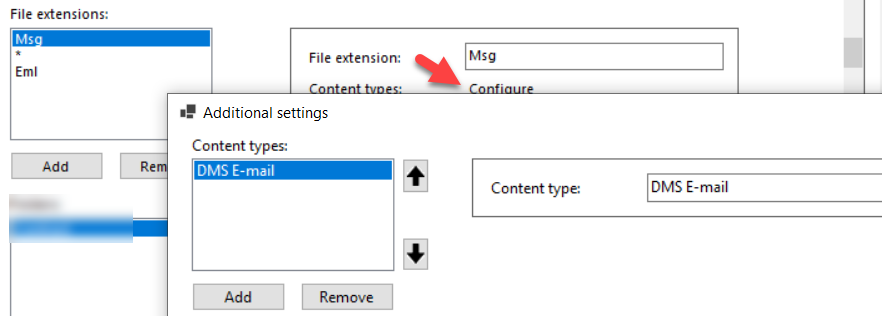
Per file extension, the content types to use. For example, for the msg extension the default content type could be DMS E-mail.
Use * as a wildcard to set the default content type(s) for all other file extensions.
Add all configures msg → DMS E-mail and * → DMS Document.
| Property | Description |
|---|---|
| File extension | The file extension, for example msg, or * for all other extensions. |
| Content types | Opens the ordered list of content types for this extension. Each entry has a Content type name. |
You can configure multiple content types for one file extension. DMSforLegal tries to assign them in the configured order.
# Folders
Uses the folder name to set the content type. For example, if items uploaded to a folder CIT should all get the content type CIT Document, add a default for the folder name CIT. Another example: the folder name Contract selects the DMS Contract content type, which can have extra fields such as ContractEndDate and ContractParty to register contracts correctly in your DMS.
| Property | Description |
|---|---|
| Folder name | The name of the destination folder. |
| Content type | The content type to use in that folder. |