# Search
# Managed search properties
The Search tab checks and adds the managed search properties that DMSforLegal needs. It is supported with SharePoint 2013 and higher.
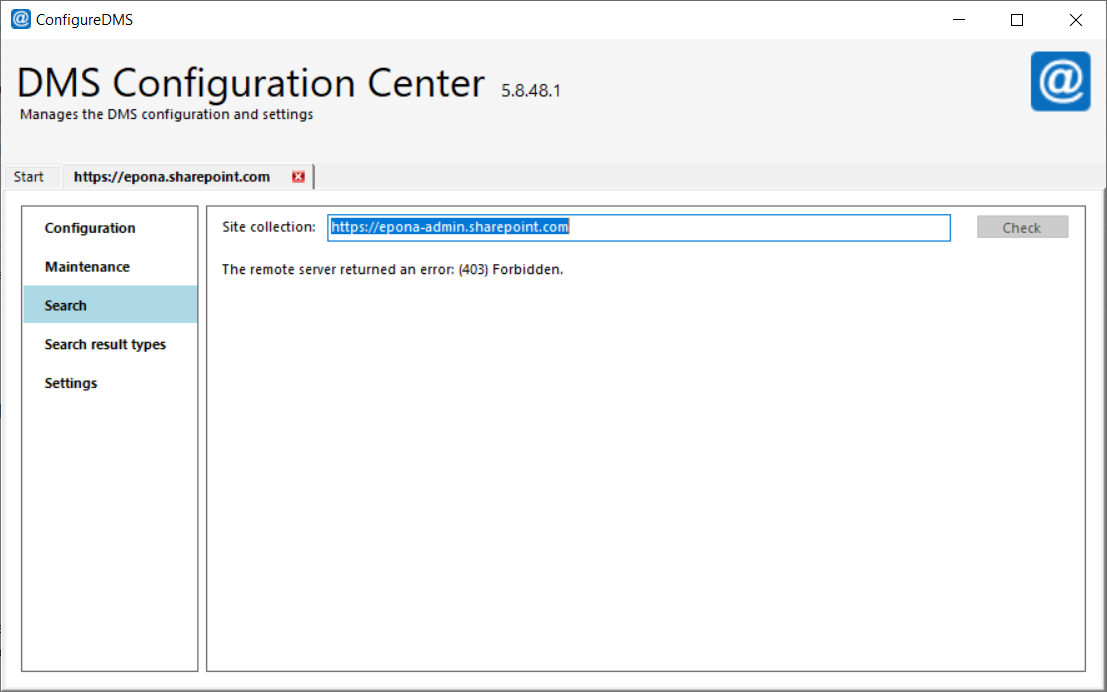
In Site collection(s): enter one site collection URL per line, then click Check. The field is pre-filled with the SharePoint admin center URL.
- A URL that contains
-admin(the SharePoint admin center) checks the central (tenant-level) search configuration. - Any other URL checks the local search configuration of that site collection.
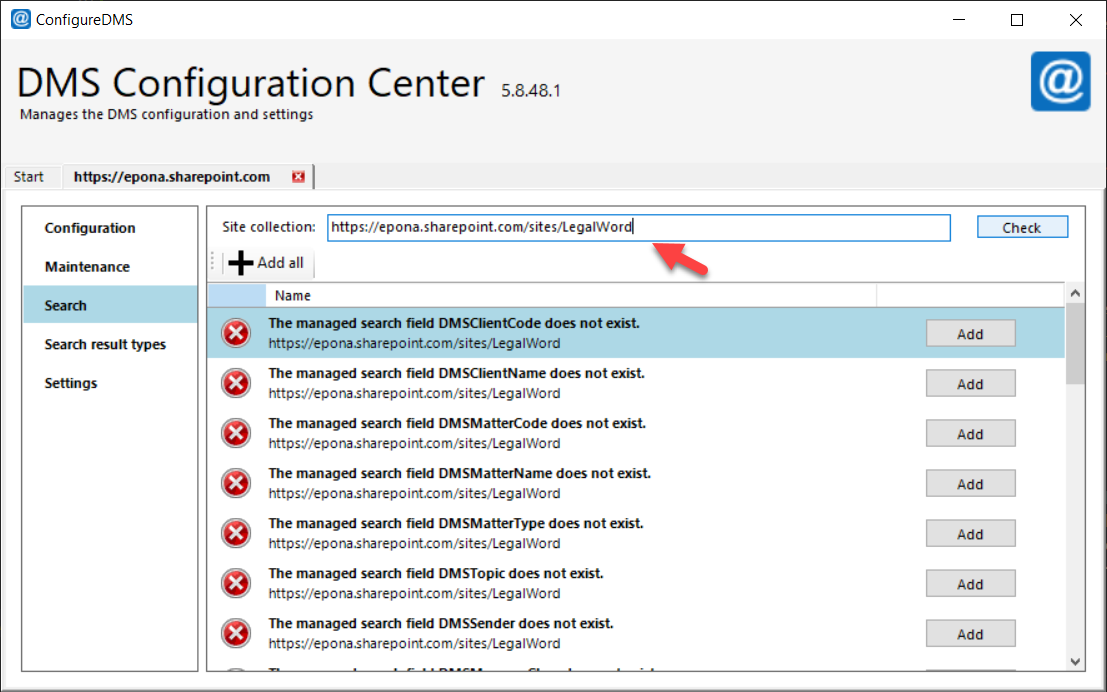
For each URL, the result lists every required managed property. A property shows as configured correctly when it exists, or when a refinable property (for example RefinableString01) has the property name as alias. Otherwise, the row shows "The managed search field ... does not exist." with an Add button.
The required managed properties are:
- the default DMSforLegal properties, such as
DMSClientCode,DMSMatterCode,DMSSenderandDMSMessageDeliveryTime; - the contract properties
CFContractNumber,CFContractEndDateandCFContractType, only when contracts are enabled in the settings; - one property
DMS<internal name>for each editable custom column in the Clients and Matters lists.
# Central search
Only a SharePoint Administrator or Global Administrator has access to central search. With other accounts, the check fails with an error such as (403) Forbidden.
With central search, the managed properties apply to all site collections. You do not need to configure each DMSforLegal site collection separately.
# Local search
If you do not use central search, enter the URL of each DMSforLegal site collection. Add one URL per line to check several site collections in one run. Click Add all to add all missing managed properties, or click Add per property.
If DMSforLegal uses more than one site collection, configure local search in each of them.
# Search result types
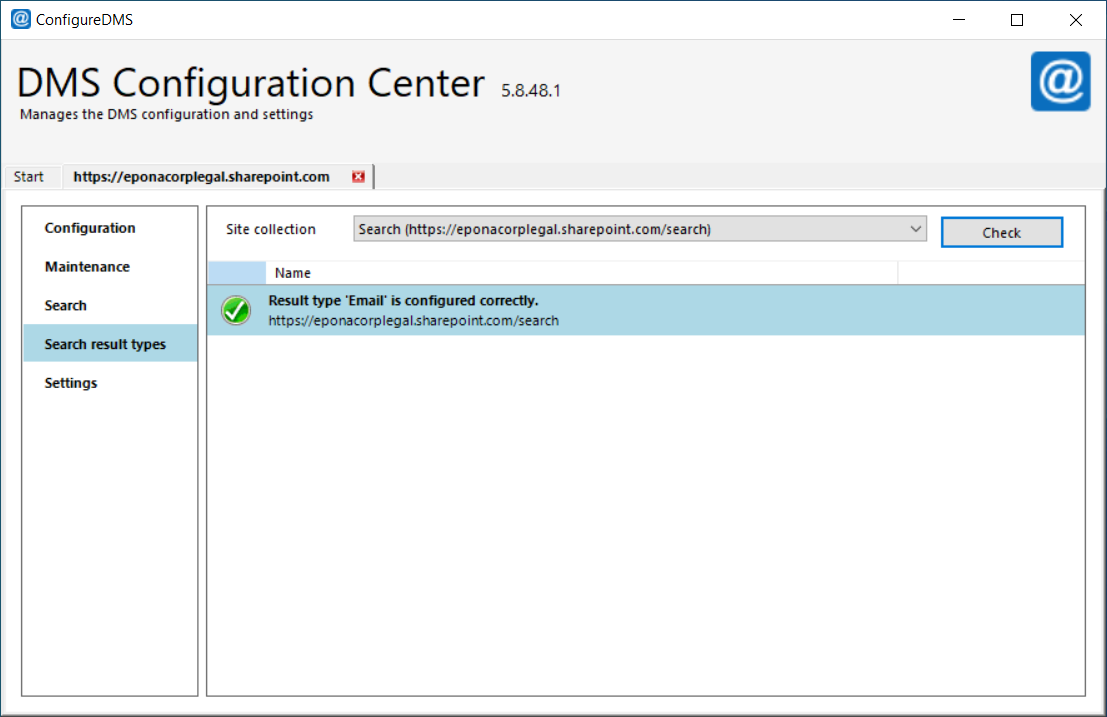
The Search result types tab checks and adds the 'Email' result type on SharePoint classic search pages. A result type specifies which display template the search system uses for a type of search result. Here, it defines how e-mail results display. Modern search pages no longer support custom search result types.
This tab is only supported with SharePoint Online. When the tab opens, it reads all site collections in the tenant through the SharePoint admin center, so it needs a SharePoint Administrator or Global Administrator account.
- Select a site collection in Site collection.
- Click Check.
- If the row shows "Result type 'Email' is not configured.", click Add.
Add uploads the display templates Item_Email.html and Item_Email_HoverPanel.html to the search display templates of the site collection and imports the 'Email' result type at site collection level.