
# Folder views
Configures which view DMSforLegal shows when a user opens a folder: the SharePoint default view, a specific SharePoint view, or the built-in Outlook-based Email view.
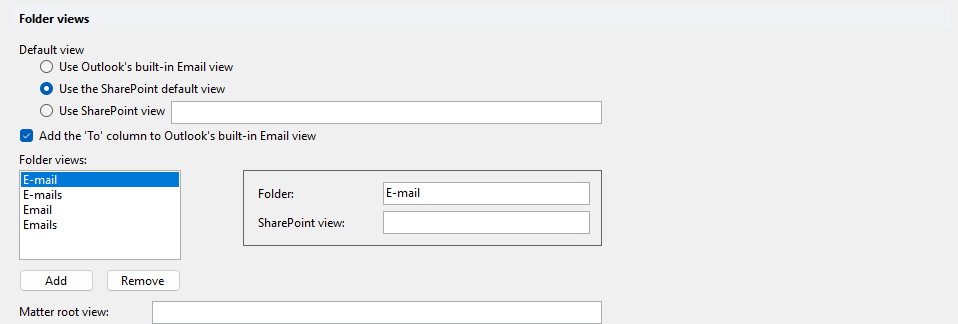
Under Default view, choose one of the next three options.
# Use Outlook's built-in Email view
Show folders with the built-in Outlook-based Email view.
# Use the SharePoint default view
Show folders with the default view of the SharePoint document library. The default configuration selects this option.
# Use SharePoint view
Show folders with a specific SharePoint view. Enter the view name in the text box next to the option.
# Add the 'To' column to Outlook's built-in Email view
Adds the To field to the built-in Email view. Enabled in the default configuration.
# Folder views
Selects a view based on the folder name. The default configuration adds the folders Email, Emails, E-mail and E-mails. Leave SharePoint view empty to use the built-in Email view of DMSforLegal for that folder, or enter the SharePoint view to use.
| Property | Description |
|---|---|
| Folder | Folder name, for example Emails. |
| SharePoint view | SharePoint view for this folder. Empty means the built-in Email view. |
# Matter root view
View for the matter root folder. Default: empty. If this view is not found in SharePoint, the view is resolved in the normal way. Child folders do not inherit this view.