
# Epona365 Web
Configures Epona365 Web: the default view and language, the sidebar, the views and refiners for clients, matters, content types and contracts, plugins and the epona:// URI scheme. See also the Epona365 configuration information at https://docs.eponalegal.com/Epona365/configuration.html (opens new window).
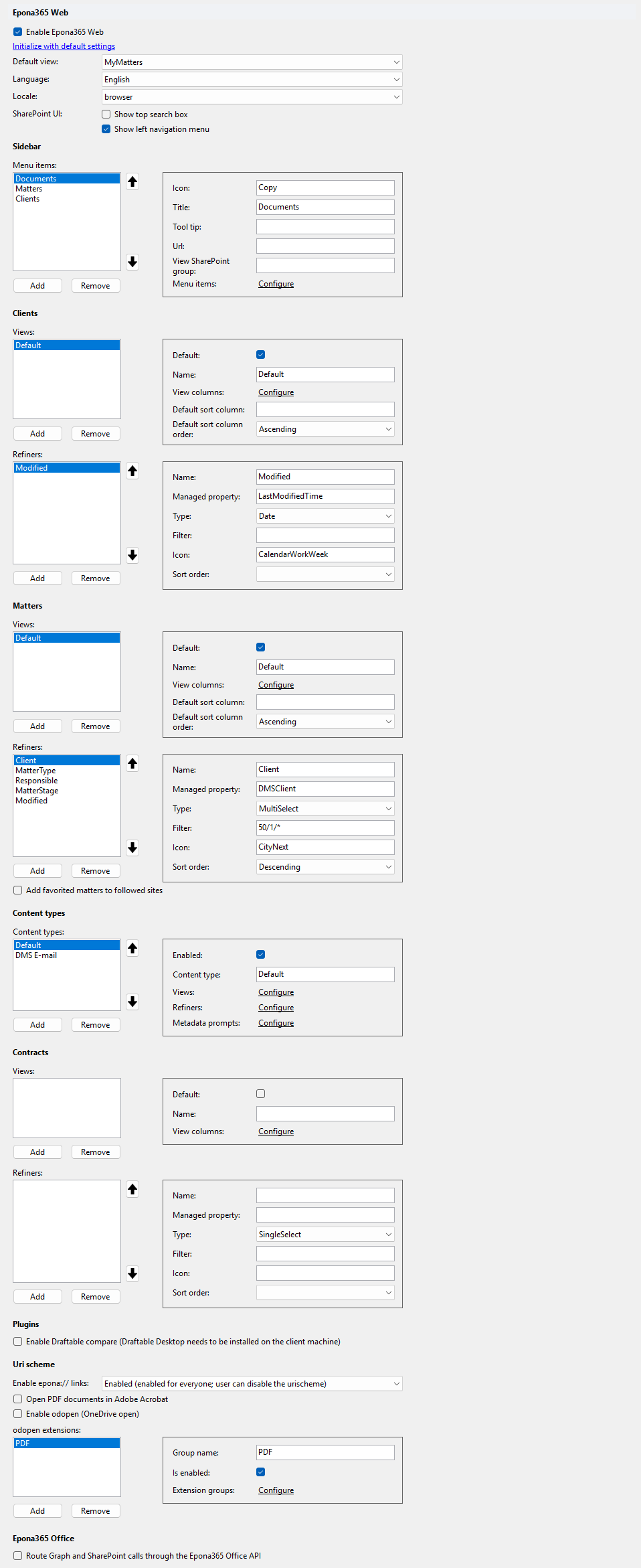
# Enable Epona365 Web
Turns Epona365 Web on or off. Default: off. The SharePoint Online default configuration enables it.
# Initialize with default settings
Link that fills in default settings for Epona365 Web. It:
- Sets Default view to MyMatters.
- Adds a default view and default refiners to Clients and Matters when they have none.
- Adds the content types
DefaultandDMS E-mail, with views and refiners, when no content types are configured. - Sets Language to browser when it is English.
Existing views, refiners and content types are not changed.
# Default view
View that Epona365 Web opens with. Options: AllMatters, MyMatters, AllDocuments, RecentDocuments. Default: MyMatters.
# Language
Controls the language of UI labels, menus, and other interface text. Options: browser (follow browser language, fallback to English), Danish, Dutch, English, French, German, Portuguese, Spanish. Default: English.
# Locale
Controls the formatting of dates, numbers, and other locale-sensitive values. Options: browser, Danish, Dutch, English, French, German, Portuguese, Spanish. Default: browser.
# Show top search box
Under SharePoint UI: shows the SharePoint search box at the top of the page. Default: off.
# Show left navigation menu
Under SharePoint UI: shows the SharePoint left navigation menu. Default: on.
# Sidebar
# Menu items
Items of the Epona365 Web sidebar. Use the arrow buttons to change the order. An item can have its own sub-items.
| Property | Description |
|---|---|
| Icon | Icon name, for example Copy. |
| Title | Caption of the menu item. |
| Tool tip | Hover text. |
| Url | URL the item opens. |
| View SharePoint group | SharePoint group. |
| Menu items | Sub-items, with the same properties. Click Configure to edit them. |
# Clients
# Views
Views of the client list. The Initialize with default settings link adds a view Default with the columns Client, Code and Modified.
| Property | Description |
|---|---|
| Default | Marks the default view. |
| Name | Name of the view. |
| View columns | Columns of the view. Click Configure to edit them. See the table below. |
| Default sort column | Column the view is sorted on. |
| Default sort column order | Ascending (default), Descending or None. |
View column properties (the same for clients, matters, content types and contracts):
| Property | Description |
|---|---|
| Name | Column header. |
| Managed property | SharePoint search managed property shown in the column, for example DMSClientName. |
| Type | Text (default), Boolean, Date, DateTime, FileType, Title, To, Importance, HasAttachment, Number, Size or Teams. |
| Sortable | Users can sort on the column. Default: on. |
| Sort order | Ascending (default), Descending or None. |
| Responsive | Number. Default: 0. |
| Width | Column width. |
| Fill space | Number. Default: 0. |
| Visible in matter view | Content types only. Shows the column in the matter view. Default: on. |
# Refiners
Refiners of the client list. The Initialize with default settings link adds Modified and Author. Use the arrow buttons to change the order.
Refiner properties (the same for clients, matters, content types and contracts):
| Property | Description |
|---|---|
| Name | Caption of the refiner. |
| Managed property | SharePoint search managed property, for example LastModifiedTime. |
| Type | SingleSelect (default), MultiSelect, Date or User. |
| Filter | Refiner filter, for example 50/1/*. |
| Icon | Icon name, for example CalendarWorkWeek. |
| Sort order | None (default), Ascending or Descending. |
| Sort by | Content types only. None (default), Frequency, Name or Number. |
| Visible in matter view | Content types only. Shows the refiner in the matter view. Default: on. |
# Matters
# Views
Views of the matter list. Same properties as the client Views. The Initialize with default settings link adds a view Default with the columns Matter, Code, Client, Teams and Modified.
# Refiners
Refiners of the matter list. Same properties as the client Refiners. The Initialize with default settings link adds Modified, Author and Client.
# Add favorited matters to followed sites
Adds matters that a user marks as favorite to the user's followed sites in SharePoint. Default: off.
# Content types
# Content types
Views, refiners and metadata prompts per content type. Use the arrow buttons to change the order. The Initialize with default settings link adds Default and DMS E-mail.
| Property | Description |
|---|---|
| Enabled | Turns the content type configuration on or off. Default: on. |
| Content type | Name of the content type, for example DMS E-mail. |
| Views | Views for this content type. Same properties as the client Views. |
| Refiners | Refiners for this content type. Same properties as the client Refiners. |
| Metadata prompts | Prompts per SharePoint field. See the table below. |
Metadata prompt properties:
| Property | Description |
|---|---|
| Name | Name of the prompt. |
| SharePoint field name | SharePoint field the prompt is for. |
| User prompt | User prompt text (multi-line). |
| System prompt | System prompt text (multi-line). |
| Max tokens used per document | Maximum number of tokens used per document. Default: 0. |
| Termset | Term set. |
| Use hierarchy | Default: off. |
# Contracts
# Views
Views of the contract list. Properties: Default, Name and View columns. View columns have the same properties as the client Views.
# Refiners
Refiners of the contract list. Same properties as the client Refiners.
# Plugins
# Enable Draftable compare (Draftable Desktop needs to be installed on the client machine)
Enables document comparison with Draftable. Draftable Desktop must be installed on the client machine. Default: off.
# Uri scheme
# Enable epona:// links
Controls the epona:// URI scheme. The SharePoint Online default configuration sets Enabled.
- Disabled (user can't enable the urischeme): default.
- Enabled (enabled for everyone; user can disable the urischeme)
- Available (user can enable the urischeme)
# Open PDF documents in Adobe Acrobat
Opens PDF documents in Adobe Acrobat. Default: off.
# Enable odopen (OneDrive open)
Enables odopen (OneDrive open). Default: off.
# odopen extensions
Groups of file extensions for odopen.
| Property | Description |
|---|---|
| Group name | Name of the group, for example PDF. |
| Is enabled | Turns the group on or off. Default: on. |
| Extension groups | File extensions in the group. Click Configure to edit them. Each entry has one Extension. |
# Epona365 Office
# Route Graph and SharePoint calls through the Epona365 Office API
When enabled, Graph and SharePoint requests are sent to the Epona365 Office API (using the Epona365 API app permissions) instead of the default SPFx shared principal. Requires the Epona365 Office API to be deployed in the tenant and the access_as_user Azure AD permission to be admin-approved. Default: off.
The Epona365 Office API URL is set in the Epona365 Office category.