
# Outlook
DMSforLegal settings for Outlook: ribbon buttons, context menu items, links to DMS files and large file handling.
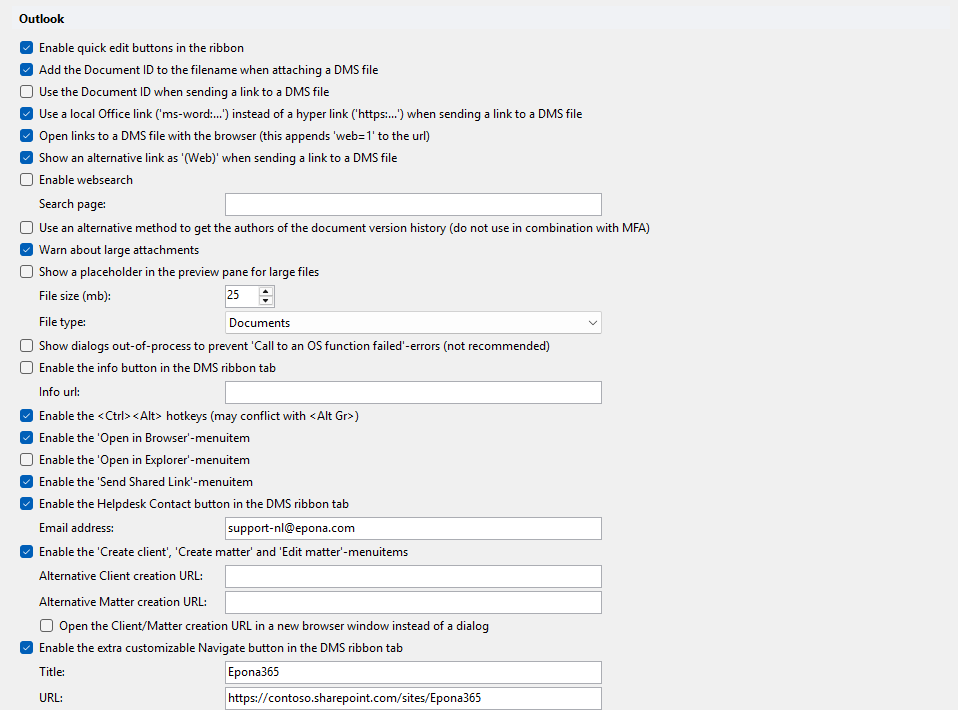
# Enable quick edit buttons in the ribbon
Quick edit buttons allow fast updates of document metadata in DMSforLegal folders. Bulk updates of a metadata property on a set of documents become easy. Default: on.
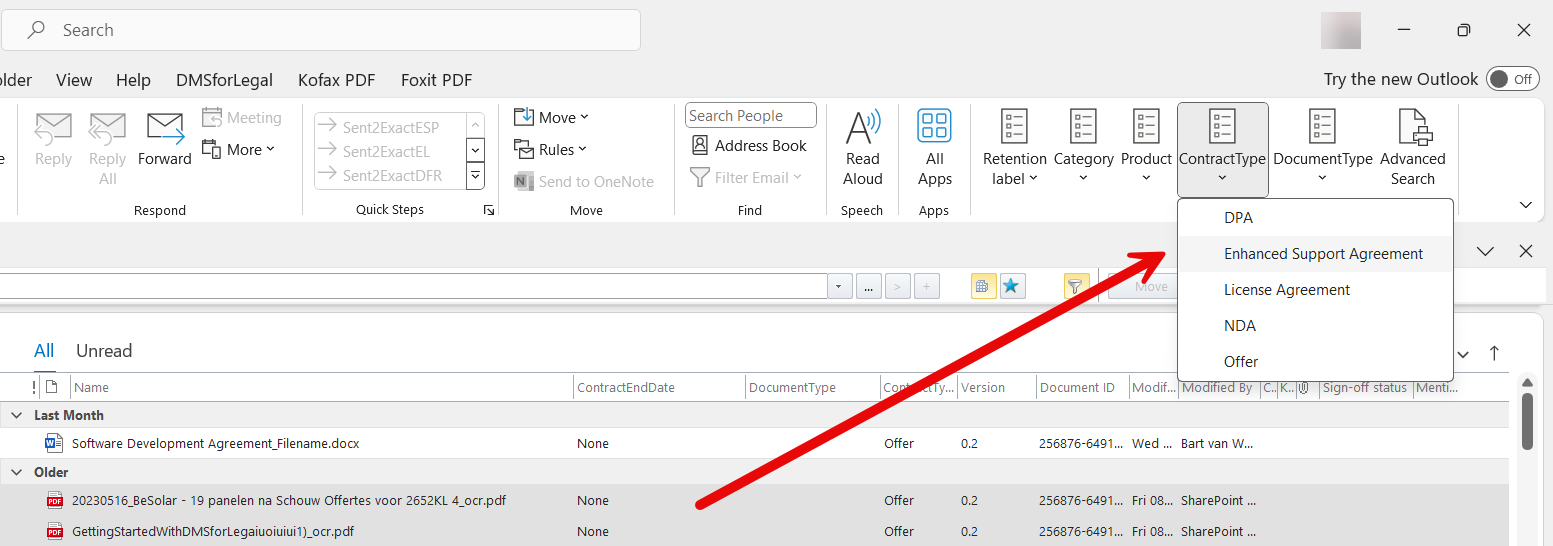
Quick edits support a maximum of 5 taxonomy sets per document library. Multi-value taxonomy fields are not supported.
# Add the Document ID to the filename when attaching a DMS file
Adds the Document ID of the file to the attachment filename. When the file is edited and sent back, the Document ID is used to look up the location of the original file. This makes it easier to save the new version in the right location. Default: on.
# Use the Document ID when sending a link to a DMS file
The Document ID is a unique reference to a file. A link that uses the Document ID still works after the file is renamed. Default: on. Add all sets this to off.
# Use a local Office link ('ms-word:...') instead of a hyper link ('https:...') when sending a link to a DMS file
The direct Office link starts the installed Office application, instead of opening the file in a browser or in the web version of the Office application. Default: off.
# Open links to a DMS file with the browser (this appends 'web=1' to the url)
Makes it easier to open DMS files in a browser. Default: off.
# Show an alternative link as '(Web)' when sending a link to a DMS file
Helps users avoid the web versions of the Office applications by also showing a link that opens the installed application. Available from DMSforLegal 25.3.x. Default: on.
# Enable websearch
Adds extra websearch locations to the DMSforLegal ribbon. Default: off.
# Search page
The search page used by Enable websearch.
# Use an alternative method to get the authors of the document version history (do not use in combination with MFA)
Deprecated. Only use this when the Epona helpdesk tells you to. Retrieves document authors from files in the DMS in an alternative way. Default: off.
# Warn about large attachments
Shows a warning to the user when a large attachment is selected. Default: on.
# Show a placeholder in the preview pane for large files
Shows a placeholder instead of the file in the preview pane. This prevents Outlook from locking up when a large file is selected in DMSforLegal and the preview has to fetch the entire file. Default: off.
# File size (mb)
Files larger than this size get the placeholder. Range 0–999. Default: 25.
# File type
The file types that get the placeholder. Options: Documents (default) or Documents and emails.
# Show dialogs out-of-process to prevent 'Call to an OS function failed'-errors (not recommended)
Deprecated. Only use this when the Epona helpdesk tells you to. Default: off.
# Enable the info button in the DMS ribbon tab
Adds a custom button to the DMS ribbon tab that opens a URL. Useful to give users quick access to your own documentation. The button is enabled when Info url has a value.
# Info url
The URL that the info button opens.
# Enable the <Ctrl><Alt> hotkeys (may conflict with <Alt Gr>)
Enables the DMSforLegal Ctrl+Alt hotkeys in Outlook. Turn this off when the hotkeys conflict with certain keyboard layouts that use Alt Gr. Default: on.
# Enable the 'Open in Browser'-menuitem
Opens the selected location of the DMSforLegal tree in a browser. Default: on.
# Enable the 'Open in Explorer'-menuitem
Opens the selected location of the DMSforLegal tree in File Explorer. Does not work under all conditions. Default: on.
# Enable the 'Send Shared Link'-menuitem
Allows users to share links to files from the context menu. Default: on.
# Enable the Helpdesk Contact button in the DMS ribbon tab
Adds a button that contacts your helpdesk by email. Default: on.
# Email address
The helpdesk email address. Default: support-nl@epona.com.
# Enable the 'Create client', 'Create matter' and 'Edit matter'-menuitems
Allows users to create clients and matters, and edit matter metadata, from the DMSforLegal tree in Outlook. Default: off.
# Alternative Client creation URL
Optional URL to use for client creation instead of the default.
# Alternative Matter creation URL
Optional URL to use for matter creation instead of the default.
# Open the Client/Matter creation URL in a new browser window instead of a dialog
Epona365 Web only, and only when an alternative client/matter creation URL is set. Use this when the URL sets X-Frame-Options or CSP headers that block embedding in an iframe, for example a custom tenant create-matter URL. When off, the URL opens in the iframe dialog. Default: off.
# Enable the extra customizable Navigate button in the DMS ribbon tab
Adds an extra button to the DMS ribbon tab that opens a configurable URL. Default: off.
# Title
The caption of the Navigate button.
# URL
The URL that the Navigate button opens.