
# Licenses
Epona products need an active license to work. Enter the activation key per product here. The values are sent to the Epona Software License Management services, and the validation information is saved back to your DMS Configuration settings.
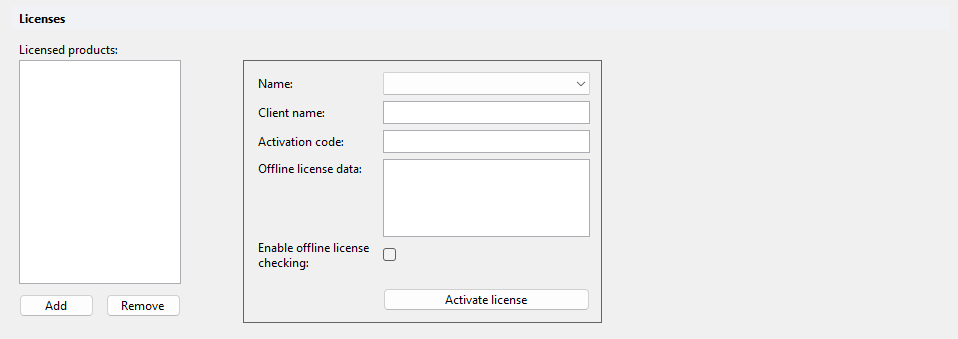
# Licensed products
One entry per licensed Epona product. Use Add and Remove to manage the list.
| Property | Description |
|---|---|
| Name | The Epona product, for example DMSforLegal or Epona365. |
| Client name | The client (company) name the license is issued to. |
| Activation code | The activation code supplied by Epona. |
| Offline license data | For offline activation. Copy and paste the offline license data into this field. The license details are read from the pasted data. |
| Enable offline license checking | Allows the license to be checked offline. Default: off. |
| Status | Read-only. Shows the result of the last activation. |
| Activate license | Activates the license. With offline license data, the license is activated offline. Otherwise the activation code is validated online against the Epona Licensing Server. |
Possible status messages after Activate license:
- "The name and/or activation code are incorrect. Please verify your data and try again."
- "The Epona Licensing Server cannot be reached. Please check your internet connection and try again."
- "The provided license information is not valid for this product."
- "The license expired on …"
- "Your license has been suspended by your supplier."
- "Your license account has been suspended by your supplier."
← Auditing Task queue →