
# Deduplication of User Accounts
# Table of Contents
# Overview
Deduplication merges two user accounts into one. Everything that refers to the duplicate account — ownership, activities, matters, contacts, created-by and modified-by stamps — is moved to the account that is kept, after which the duplicate account is deleted.
Requires ContactManager 26.2 or newer.
# When to use it
- A person has more than one account, for example a test account or an account created after a rename.
- Migrated or imported data created duplicate user entries.
- Activity history, ownership or references should be consolidated under a single account.
# Running a deduplication
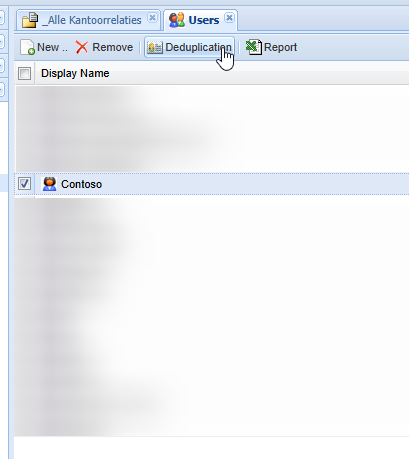
Only users with owner permission on the Users folder — in practice the administrators — see the button.
Go to Users in the ContactManager configuration area.
Select the user that must remain: the master account.
Click Deduplication in the toolbar.
In the dialog, select the account to merge into the master.

Field Meaning Master CmsUser The account that remains after the merge Duplicate CmsUser The account whose references are transferred and which is then deleted Click De duplicate to confirm. When the merge finishes, a summary shows how many references were updated. The same summary is written to the ContactManager log.
# What happens during deduplication
- Every record that refers to the duplicate account is re-pointed to the master account. This includes ownership fields (responsible, originator, follow-up user), activity and matter references, linked contact records, and the created-by and modified-by stamps.
- Subscription folder ownership of the duplicate is merged into the master's own folder ownership, so no duplicate ownership records remain.
- The merge is recorded in the master account's history, naming the account that was merged into it.
- The duplicate account is deleted.
If the merge fails part-way, the error is reported and logged and the duplicate account is not deleted. References that were already moved to the master stay moved, so check the log before retrying.
# Best practices
- Verify which account must be the master before you start — check the e-mail addresses. The merge cannot be undone.
- Tell the affected users before removing an old account, especially when their login method or a linked system (Outlook synchronisation, mailing platform) depends on it.