
# Spotler (MailPlus) Integration — ContactManager Module Manual
The Spotler integration is branded internally as MailPlus (Spotler was formerly called MailPlus). The module assembly is
Epona.ContactManager.MailPlus, configuration objects and URLs use theMailPlusname, and the e-mail platform is reached through the Spotler/MailPlus REST API. Throughout this manual Spotler and MailPlus refer to the same system.
# Table of Contents
- Overview
- Setup
- Configuration Reference
- Field Mapping
- Synchronisation (CM to Spotler)
- Synchronisation (Spotler to CM)
- Newsletters and Permissions
- Seminars and Form Answers
- Nightly Job
- URL Reference
# Overview
The MailPlus module provides two-way synchronisation between ContactManager (CM) and Spotler (MailPlus):
- Outbound (CM → Spotler): Contact field values, newsletter permissions and active/inactive status are pushed to the contact's Spotler profile whenever a mapped field changes in CM.
- Inbound (Spotler → CM): A daily job pulls back profile changes, hard bounces, global opt-outs and form submissions.
Contacts are matched between the two systems on the contact's e-mail address. The Spotler
contact ID is stored on the CM contact as a SynchronizableRecord for the application
MAILPLUS.
Synchronised entity types: Person, Company, Employee and CompanyDepartment. Matters are never synced as objects of their own, but matter field values can be pushed onto the linked contacts (see Matter-derived values).
# Setup
# Connecting to Spotler
Open http://<cm>/MailPlusConfiguration.aspx and fill in the OAuth credentials supplied
by Spotler:
| Setting | Description |
|---|---|
ConsumerKey | OAuth consumer key from the Spotler account. |
ConsumerSecret | OAuth consumer secret from the Spotler account. |
Url | Base URL of the Spotler REST API. Defaults to https://restapi.mailplus.nl/integrationservice; only change for a non-standard environment. |
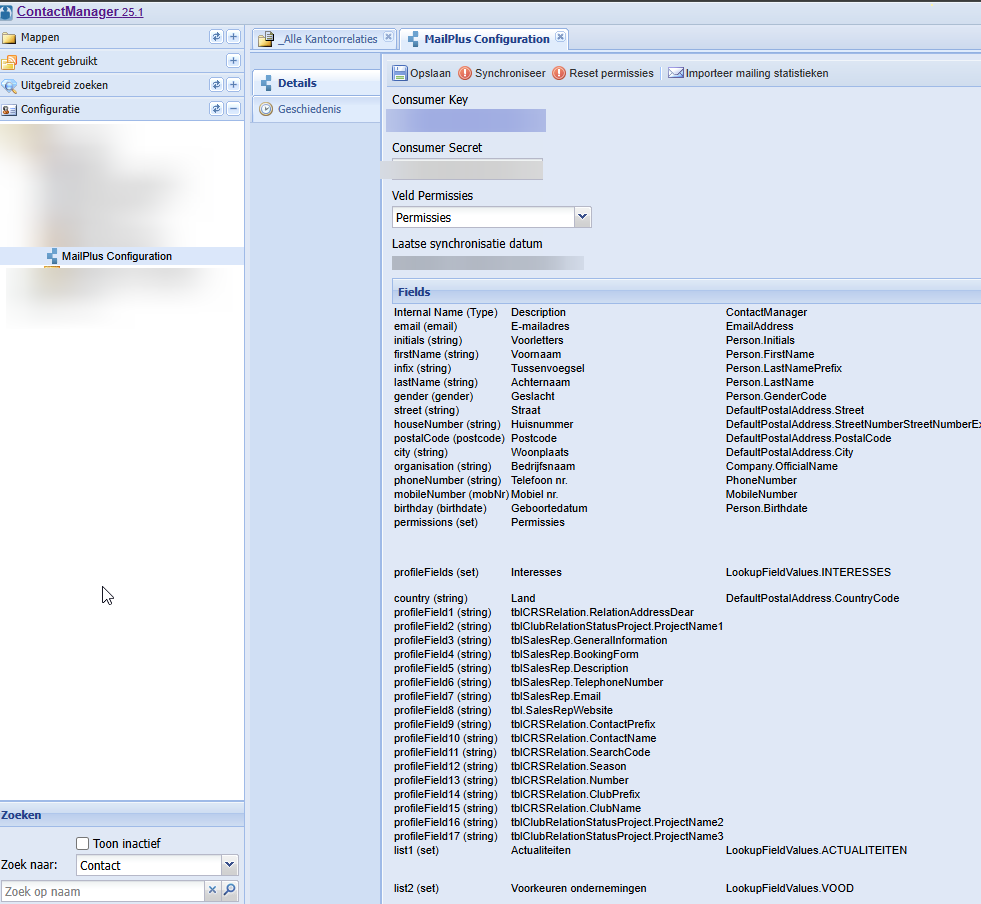
Authentication uses OAuth 1.0a: every request is signed with the consumer key and
secret. The module is considered enabled only when both ConsumerKey and
ConsumerSecret are filled in. If either is empty, all synchronisation is skipped.
Dates exchanged with Spotler are encoded as epoch milliseconds (UTC) and converted automatically by the module.
# Profile fields
After the connection is configured, the configuration screen loads the list of available profile fields from the Spotler account. These field names are what the field mapping maps CM values onto. Two profile fields have a special role:
- The field that holds the contact's e-mail address — configured via
ProfileEmailFieldName(defaultemail). This is the field used to match contacts between CM and Spotler. - Optionally, the field that holds the contact's newsletter permissions — configured
via
PermissionsProfileFieldName. When set, permissions are synchronised between CM and Spotler (see Newsletters and Permissions).
# Newsletter root folder
When newsletter subscriptions are stored as folders (the default mode), the module needs a
root folder in CM under which it creates one SubscriptionFolder per Spotler
newsletter. This is stored as RootFolder on the MailPlus configuration and is created
automatically on first use.
# Configuration Reference
The module has two configuration layers:
- MailPlus Configuration — the configuration screen at
http://<cm>/MailPlusConfiguration.aspx. Holds the connection credentials and the permissions profile field. - Module settings — the MailPlus application settings, edited in the CM configuration
screen, plus the
MailPlusMapping.inifield-mapping file.
# Connection settings (MailPlus Configuration)
Edited at http://<cm>/MailPlusConfiguration.aspx.
| Setting | Default | Description |
|---|---|---|
ConsumerKey | (empty) | OAuth consumer key. Required to enable the module. |
ConsumerSecret | (empty) | OAuth consumer secret. Required to enable the module. |
Url | https://restapi.mailplus.nl/integrationservice | Spotler REST API base URL. |
PermissionsProfileFieldName | (empty) | Spotler profile field that holds newsletter permissions. When set, permissions are synced between CM and Spotler. |
RootFolder | (auto) | CM folder under which newsletter SubscriptionFolders are created. |
LastSynchronisationDate | 1999-01-01 | Timestamp of the last inbound sync. Updated automatically by the nightly job. |
# Module settings
Application settings of the MailPlus module.
# Disabled
Master switch. When true, all synchronisation (inbound and outbound) is disabled and the
MAILPLUS application is added to the disabled-applications list. Default: false.
# Debug
When true, API requests/responses are written to the log for troubleshooting. Default:
false.
# Visible
Which contact types show the MailPlus tab in the UI. Default:
Company | CompanyDepartment | Employee | Person (all).
# ProfileEmailFieldName
Name of the Spotler profile field that stores the contact's e-mail address. Used both as
the outbound e-mail mapping and to match contacts between the two systems. Default:
email.
# EmailAddressType
CommunicationItemType code used to select which e-mail address of the contact is sent to Spotler. Leave empty to use the contact's default e-mail address.
# AllowChangeNewsletterRole
Name of the role allowed to modify a contact's newsletter subscriptions (the user also
needs change permission on the contact). Default: Everyone.
# UnsubscribedNewsLettersRoleName
When set, newsletters that the system has previously unsubscribed a contact from are shown read-only on the contact's MailPlus tab, protecting them from being re-enabled. Leave empty to disable.
# SynchronisationTrigger
What starts the synchronisation of a contact to Spotler.
| Value | A contact starts syncing when |
|---|---|
Permission | A newsletter permission is selected on the contact |
Subscribed | The contact's subscription status is Subscribed and it has an e-mail address — for customers that do not work with newsletter permissions in Spotler |
Default: Permission.
# AutomaticSyncToCM
List of Spotler profile fields that are automatically copied to CM on inbound sync, always overwriting the CM value. Fields not in this list create a ReviewUpdate for manual merge instead. Default: empty.
# VisibleProfileFieldsOnMailPlusTab
List of Spotler profile fields shown (editable) on the contact's MailPlus tab. Default: empty.
# AutomaticNewsLettersForClient
Newsletter folders that a contact is automatically subscribed to when its type is set to a Client type. Companies are excluded. Default: empty.
# SyncPermissionsToSubscriptionStatusPermissions
Controls how newsletter permissions are stored in CM. When true, permissions are stored
on the contact's SubscriptionStatusPermissions; when false, they are stored as
SubscriptionFolder/SubscriptionItem records under the root folder. Default: false.
See Newsletters and Permissions.
# SubscriptionItemStatusCodeForSignIn
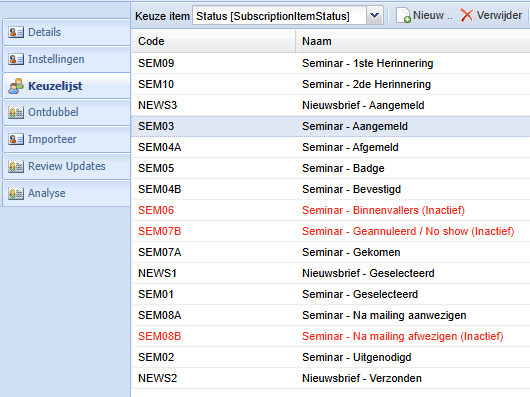
Status code applied to a subscription item when a contact signs in / will attend (via a form submission). Leave empty to disable. The available codes are the subscription item statuses maintained in CM:
# SubscriptionItemStatusCodeForSignOut
Status code applied to a subscription item when a contact signs out / will not attend. Leave empty to disable.
# EmailAddressAlerts
E-mail address that receives sync alerts and notifications. When empty, the data steward address is used.
# EntityFilter
Restricts synchronisation to the listed entity types, e.g. Employee,Person,Company,Department.
When empty, all supported entity types are synced. Default: empty.
# DuplicateCheckEntityFilter
Restricts the entity types searched when matching an inbound Spotler contact to an existing CM contact by e-mail address. When empty, all entity types are searched. Default: empty.
# ActivityOwnerContactID / ActivityType
Used when importing mailing statistics as activities: the contact ID that owns the created activities and the activity type code to use.
# FtpServer / FtpUsername / FtpPassword
Legacy FTP credentials for importing mailing statistics. Not used in normal operation.
# Mailing statistics as activities
Mailing statistics are imported by uploading a CSV/Excel of contact ids at MailPlusConfiguration.aspx/ImportMailingStatistics. A background job creates one activity per contact, owned by ActivityOwnerContactID and of type ActivityType. (The Ftp* settings above are a disabled legacy import path.)
# Field Mapping
# Mapping file
The mapping between Spotler profile fields and CM fields is defined in the INI file
Config\MailPlusMapping.ini (falls back to Config\MailPlusMapping.master.ini when the
former is absent). Three sections are read:
| Section | Purpose |
|---|---|
[FieldMapping] | Maps Spotler profile fields to CM contact fields (the main contact sync). |
[SubscriptionItem] | Maps Spotler form fields onto subscription items. |
[Language] | Maps free-text language values to CM language codes. |
Each [FieldMapping] entry is <spotler profile field>=<CM field>. Example:
[FieldMapping]
email=EmailAddress
initials=Person.Initials
firstName=Person.FirstName
infix=Person.LastNamePrefix
lastName=Person.LastName
gender=Person.GenderCode
language=LanguageCode
street=DefaultPostalAddress.Street
postalCode=DefaultPostalAddress.PostalCode
city=DefaultPostalAddress.City
country=DefaultPostalAddress.CountryCode
organisation=Company.OfficialName
phoneNumber=PhoneNumber
mobileNumber=MobileNumber
# Field name syntax
The CM side of a mapping (the value) supports the following forms:
| Form | Meaning | Example |
|---|---|---|
FieldName | A field directly on the contact. | EmailAddress, PhoneNumber |
Person.Field | A field on a Person contact. | Person.FirstName |
Company.Field | A field on a Company contact. | Company.OfficialName |
Employee.Field | A field on an Employee. | Employee.EmployeeNumber |
CompanyDepartment.Field | A field on a department. | CompanyDepartment.Name |
DefaultPostalAddress.Field / DefaultVisitorAddress.Field | A field on the contact's postal/visitor address. | DefaultPostalAddress.City |
Matter.<tag> | A value derived from the contact's matters (see below). | Matter.LookupfieldValue.Expertise#1 |
Phone, mobile and fax numbers are normalised before comparison; postal codes are compared with whitespace removed. This avoids spurious updates caused by formatting differences.
# Matter-derived values
A mapping value prefixed with Matter. resolves against the contact's matters instead
of a field on the contact itself. This mirrors the contact card's
ViewMatterTagInformation feature (<add key="ViewMatterTagInformation" value="LookUpFieldValue.Expertise#1" />):
the value pushed to Spotler is exactly what the user sees on the contact card.
[FieldMapping]
spotlerExpertise=Matter.LookupfieldValue.Expertise#1
The tag after the Matter. prefix uses the same syntax as ViewMatterTagInformation,
in one of two forms:
- Lookup-field tag —
<anything>.<Code>#<level>, e.g.LookupfieldValue.Expertise#1. Resolves the distinctLookupFieldValues of a configured lookup field across the contact's matters. - Direct matter field tag —
<Field>with an optional#<level>, e.g.AreaOfLaw,MatterType,Owner. Resolves a field directly on the matter (see the constraint below — only reference fields are supported).#<level>only has an effect when that field is a hierarchical lookup; omit it for flat references such asOwner.
# What Expertise matches
In the lookup-field form the part before the dot (LookupfieldValue) is only a marker
that says "this is a lookup field" — its exact text is ignored. The part after the dot,
Expertise, is matched (case-insensitive) against the Code of a LookupField defined in
CM. A LookupField is a configurable picklist attached to matters; Expertise is an example
Code (e.g. "area of expertise") — it is customer-defined, not a fixed field.
In the direct form there is no dot, so the tag is matched against an actual field on the Matter instead of a lookup list.
# Which direct matter fields are supported
A direct matter field is only synced when it is a reference to an entity (a lookup item, a user, another contact, …). The most useful ones:
| Mapping | Matter field | Synced value |
|---|---|---|
Matter.AreaOfLaw | AreaOfLaw (lookup item) | The area-of-law display name (or its Spotler external ID). |
Matter.MatterType | MatterType (lookup item) | The matter-type display name. |
Matter.Owner | Owner (user) | The responsible user's display name. |
The field name must match a field on the Matter exactly. Scalar matter fields —
plain text, dates, numbers and booleans such as Matter.Reference or Matter.OpenDate —
are not supported and resolve to an empty value; only entity references are serialized.
The #level suffix only has an effect on hierarchical lookup values; for flat
references such as Owner it is ignored.
# What #1 means — the hierarchy level
LookupFields can be hierarchical (a tree, e.g. Law \ Corporate \ M&A). The number
after the # selects which level of that path to use when rendering the value:
| Tag | Meaning | Example value selected Law \ Corporate \ M&A becomes |
|---|---|---|
Expertise (no #) | The full leaf value / complete path. | Law \ Corporate \ M&A |
Expertise#1 | The top-level (root) ancestor. | Law |
Expertise#2 | The second level. | Corporate |
Expertise#3 | The third level (here the leaf). | M&A |
If the selected value is shallower than the requested level, the leaf value is used. So
#1 "rolls up" deep values to their root category: a contact whose matters use
Law \ Corporate \ M&A and Law \ Litigation syncs as the single distinct root value
Law.
# Collection and output
All distinct values across the contact's matters are collected — using the same matter
query the contact card uses (matters where the contact is the Parent, or ParentContact
for companies) — each rolled up to the requested level, then sent to Spotler as a single
~-joined value. When the contact has no matching matter values, an empty value is sent.
# Examples
# Sync the root expertise category of each matter onto the contact's "spotlerExpertise" field
spotlerExpertise=Matter.LookupfieldValue.Expertise#1

# Sync the full (leaf) expertise value
spotlerExpertiseFull=Matter.LookupfieldValue.Expertise

# Sync direct (reference) matter fields
spotlerAreaOfLaw=Matter.AreaOfLaw
spotlerMatterType=Matter.MatterType
spotlerOwner=Matter.Owner
Matter-derived mappings are export-only: they are never written back from Spotler to CM during inbound sync.
# How values are serialized
- Collections / lookup values — each item is rendered as its Spotler external ID
(
SynchronizableRecords.GetExternalID("MAILPLUS")), falling back to the default-culture display name, then the key id. Inactive items are skipped. The result is distinct, ordered and~-joined (Spotler "set" fields). - Dates (e.g. birth date) are formatted as
yyyy-MM-dd. - Translatable fields use the contact's language culture.
- Newsletter permissions, when synced through a profile field, are
~-joined as well.
# Synchronisation (CM to Spotler)
# What is synced
When a mapped field changes on a Person, Company, Employee or CompanyDepartment, the
contact's MAILPLUS sync record is marked dirty and the contact is re-synchronised to
Spotler. Changes to a contact's postal/visitor address, department or
location also trigger the owning contact to re-sync, provided the relevant field is
mapped.
Synchronisation respects EntityFilter: when set, only the listed entity
types are synced.
# Change tracking
Synchronize.MarkRecordAsChanged decides whether a CM change requires a Spotler sync:
- Inbound sync in progress → skip (avoids feedback loops).
- The changed entity is a Matter → re-sync linked contacts (see below); the matter itself never gets a sync record.
- Entity filtered out by
EntityFilter→ skip. - Entity is not a contact/address/department/location → skip.
- The changed field is not referenced by any mapping → skip.
- Otherwise the contact's sync record is created or marked dirty.
# Matter change tracking
Because matter field values can be pushed onto contacts via Matter.-prefixed mappings,
changes to those matter fields must also trigger a re-sync of the linked contacts.
When a matter field changes and at least one Matter. mapping is configured whose field
could be affected, the module marks the MAILPLUS sync record of every contact linked to
that matter as dirty, so those contacts pick up the matter's new value on their next sync.
Linked contacts are the matters where the contact is the Parent (or ParentContact for
companies) — the same relationship the contact card uses.
Field matching is deliberately broad and case-insensitive, ignoring the #level suffix: a
lookup-field mapping is driven both by the matter's lookup-value collection and by the
lookup code itself, so a change to either re-syncs the linked contacts.
# Deduplication and contact removal
Merging contacts moves the duplicates' newsletter permissions onto the master contact; removing a contact clears its e-mail and performs a Spotler global opt-out so it is no longer mailed.
# Synchronisation (Spotler to CM)
The nightly job (and the manual Execute action) pulls changes back from Spotler.
# Profile changes
For each day between LastSynchronisationDate and now, the module fetches the contacts
changed in Spotler and compares each mapped profile field against the current CM value:
- If the field is listed in
AutomaticSyncToCM, the CM value is overwritten automatically. - Otherwise a ReviewUpdate record is created so a user can merge the change manually (a notification e-mail links straight to the merge screen).
Matter-derived (Matter.) mappings are ignored on inbound sync.
# Bounces and opt-outs
- Hard bounces reported by Spotler set the contact's subscription status to HardBounce.
- A global opt-out in Spotler sets the contact's subscription status to Unsubscribed and clears its permissions.
# Form answers
For each subscription folder linked to a Spotler form, the nightly job imports the form
submissions and updates the corresponding SubscriptionItem status. This is the inbound
half of the seminar / registration feature and is described in full in its own chapter —
see Seminars and Form Answers.
# Newsletters and Permissions
Newsletter subscriptions can be stored in CM in two modes, controlled by
SyncPermissionsToSubscriptionStatusPermissions:
Folder mode (false, default)
- Each Spotler newsletter becomes a
SubscriptionFolderunder the configured root folder. - Each subscribed contact is a
SubscriptionItemin that folder, carrying its status (Subscribed, Unsubscribed, HardBounce, …).
Permission mode (true)
- Subscriptions are stored on the contact's
SubscriptionStatusPermissionscollection. - No separate subscription folders/items are kept.
In both modes, permissions are synchronised in both directions when
PermissionsProfileFieldName is set: outbound, the contact's permissions are ~-joined
into that Spotler profile field; inbound, the profile field is parsed back onto the contact.
When a contact's type is set to a Client type it can be auto-subscribed to the
newsletters listed in AutomaticNewsLettersForClient.
Companies are excluded.
To re-import all subscribers and permissions from Spotler (rebuilding the folders/items or permissions from scratch), use the ResetPermissionsInCM action (see below).
# Bulk permission imports
Two spreadsheet imports seed permissions, matched on CM_ID or EmailAddress with one boolean column per newsletter: Reset and Import Permissions (rebuilds a contact's subscriptions, optionally clearing them first and marking the contact Subscribed) and Blocked Permissions (audit-trails newsletters a contact must not receive; subscription status unchanged). Both differ from ResetPermissionsInCM, which re-imports all subscribers from Spotler.
# Seminars and Form Answers
This is the biggest stand-alone feature of the module. It uses a subscription folder as a seminar / event audience: the folder's members are invited through a Spotler mailing, register through a Spotler form, and their answers (attend / decline) flow back into CM as the subscription item's status. It has two halves — an outbound step that builds the invitation audience, and an inbound step that reads the registrations back.
# Concept
A SubscriptionFolder linked to a Spotler form behaves differently from a newsletter
folder:
- Recipients cannot unsubscribe themselves from this kind of mailing. Membership is controlled entirely in CM by adding/removing subscription items (or making them inactive).
- The contacts in the folder are pushed to Spotler as a temporary list, which is used as the target audience for the invitation e-mail.
- The Spotler form that the invitees fill in is linked to the folder. One form field (the attend / decline answer) is mapped onto the CM subscription item status.
# Status model
Two distinct "status" concepts are involved:
| Status | Where | Meaning |
|---|---|---|
SubscriptionItem.Status | per registration | A configurable SubscriptionItemStatus lookup item (e.g. Attending, Declined). Maintained in CM Configuration → lookup item Status. Each status has a Code. Statuses are scoped to the folder's SubscriptionFolderType (only matching statuses are eligible for that folder). |
Contact.SubscriptionStatus | per contact | The contact-level newsletter status (Subscribed, Invited, Unsubscribed, HardBounce, …). Creating a registration sets the contact to Subscribed. |
Two configuration codes provide a fallback when the form answer is a plain boolean rather than a status code:
SubscriptionItemStatusCodeForSignIn— applied when the answer is "true" (will attend).SubscriptionItemStatusCodeForSignOut— applied when the answer is "false" (will not attend).
# Linking a folder to a Spotler form
On the subscription folder's Spotler form (http://<cm>/MailPlus.aspx/Details/<id>) set:
| Field | Required | Purpose |
|---|---|---|
FormName | yes | The Spotler form (by id) linked to this folder. A form can be linked to only one folder. |
FormFieldSubscriptionItemStatus | yes | The form field holding the attend / decline answer that drives the subscription item status. |
FormFieldEmailAddress | optional | The form field holding the e-mail address, used to match registrations to contacts and to detect e-mail changes. |
FormFieldPermissions | optional | The form field holding newsletter permissions, also applied to the contact when a registration is imported. |
Prerequisites on the Spotler side:
- In the form settings, enable supplement form data with personal data — otherwise all answers are submitted anonymously and cannot be matched to a contact.
- Define the possible answers of the status field using the CM
SubscriptionItemStatuscodes, so an answer maps directly to a CM status. - In the form Settings, fill in the sign-in and sign-out status codes.
- A survey or poll can also set the status: add a hidden field with a fixed value equal to the code of the desired status.
- Only the status (and optionally e-mail / permissions) is imported. Other answers (parking, dietary requirements, …) are not imported into CM — retrieve them from Spotler and export to Excel.
# Outbound: building the invitation list
Pushing the folder's contacts to a Spotler temporary list is a manual action (not part
of the nightly job): the Sync to temporary list button on the folder's Spotler form
(http://<cm>/MailPlus.aspx/SyncToTemporaryList/<id>). It runs in the background and:
- Optionally imports the latest form answers first (when a form is linked).
- Selects the folder's active subscription items, optionally filtered by a chosen status.
- For each contact: skips hard bounces and contacts without an e-mail address; otherwise ensures the contact exists/updates in Spotler and collects it for the list.
- Creates a new Spotler temporary list (named after the folder, status and timestamp) and adds the contacts in pages of 2,500.
- Enforces a cap of 59 temporary lists in Spotler, deleting the oldest when the cap is reached.
- Optionally sets a new subscription item status on the processed items.
- Sends a summary e-mail listing hard bounces, contacts without an e-mail address, and contacts skipped in CM.
The resulting temporary list is then selected as the audience of the invitation mailing in Spotler.
# Inbound: importing form answers
Form answers are imported nightly (DailySyncService → per folder) and can be triggered
manually with the Import button (http://<cm>/MailPlus.aspx/ImportFormAnswers/<id>).
For each linked folder the importer:
- Fetches the form results submitted since the folder's
LastSynchronisationDate, ordered by submission time, and resolves the eligibleSubscriptionItemStatuscodes for the folder's type. - For each submission:
- Test submissions are skipped (the answers are e-mailed for information only).
- Resolves the contact — first by the CM contact id carried in the form, otherwise
by the form e-mail address within the folder, then by a global e-mail search. The
DuplicateCheckEntityFilterapplies to the search. - No contact found → an e-mail is sent to the data steward with the submitted data and ready-made links to create the contact as a Person or Company; the registration is processed manually.
- No subscription item yet → one is created, the contact's
SubscriptionStatusis set toSubscribed, and the contact's profile fields and permissions are updated from the form. - Changed e-mail address (form e-mail differs from the contact's) → CM tries to find a contact by the new e-mail; a unique match gets a new subscription item, otherwise an e-mail is sent for manual processing.
- Maps the status answer: an answer that matches a
SubscriptionItemStatusCode or ID sets that status; a boolean "true" falls back toSubscriptionItemStatusCodeForSignIn; anything else is reported as an unknown answer for manual handling. - Conflict detection: if the subscription item was changed in CM by a non-system user after the last sync, the Spotler status is still applied but the summary flags a potential conflict.
- Advances the folder's
LastSynchronisationDate. If the linked form has been archived in Spotler, the form link is cleared so the folder stops syncing. - Sends a summary e-mail of the imported updates and any errors.
# Unknown / free registrations
People who are not yet in CM and register through free input (a "forward to a friend" link or the public website) are only processed automatically when their e-mail address yields a unique match. Otherwise an e-mail with the submitted data is sent to the data steward, who creates the contact (or verifies it already exists), adds it to the subscription folder with the correct status, and lets the normal sync push it back to Spotler.
# Contact MailPlus tab
http://<cm>/MailPlusContact.aspx/Details/<id> shows a single contact's Spotler state: inactive channels, its newsletter checkboxes / permissions, the profile fields listed in VisibleProfileFieldsOnMailPlusTab, subscription status and history, a Subscribe button when the contact is unsubscribed, and (when available) a campaign selector. Editing requires the AllowChangeNewsletterRole role plus change permission on the contact.
# Campaigns
A subscribed, active contact can be entered into a Spotler campaign from its MailPlus tab (Start campaign, MailPlusContact.aspx/StartCampaign/<id>, calling SyncService.StartCampaign). The action is rejected when the contact is inactive, not subscribed, or has no Spotler profile.
# Nightly Job
Once per day the DailySyncService runs automatically (skipped when the module is disabled
or not configured). Acting as the system user, it:
- Opens a connection to Spotler.
- Ensures newsletter permission objects exist (
CreatePermissions, permission mode only). - Pulls profile changes into CM (
UpdateProfileChangesInCM), including bounces and opt-outs, and advancesLastSynchronisationDate. - Imports form answers (
UpdateFormChangesInCM). - Sends a summary e-mail when updates were found or errors occurred.
To run the same job manually, use the Execute action on the configuration screen.
# URL Reference
| URL | Purpose |
|---|---|
http://<cm>/MailPlusConfiguration.aspx | Edit connection credentials and the permissions profile field. |
http://<cm>/MailPlusConfiguration.aspx/Execute | Run the daily inbound sync immediately (admin). |
http://<cm>/MailPlusConfiguration.aspx/ResetPermissionsInCM | Confirm and run a full re-import of all Spotler subscribers/permissions (admin). |
http://<cm>/MailPlusConfiguration.aspx/ImportMailingStatistics | Upload a CSV of contact IDs and create mailing-statistics activities (admin). |
http://<cm>/MailPlus.aspx/Details/<id> | Configure form-field mappings for a subscription folder. |
http://<cm>/MailPlus.aspx/ImportFormAnswers/<id> | Import form answers for a subscription folder. |
http://<cm>/MailPlus.aspx/SyncToTemporaryList/<id> | Sync selected subscription items to a Spotler temporary list. |
http://<cm>/MailPlusContact.aspx/Details/<id> | View/edit a contact's Spotler profile, channels and newsletter permissions. |