
# Configuration
Use the DMS Config application to configure the DMS 365 webpart.
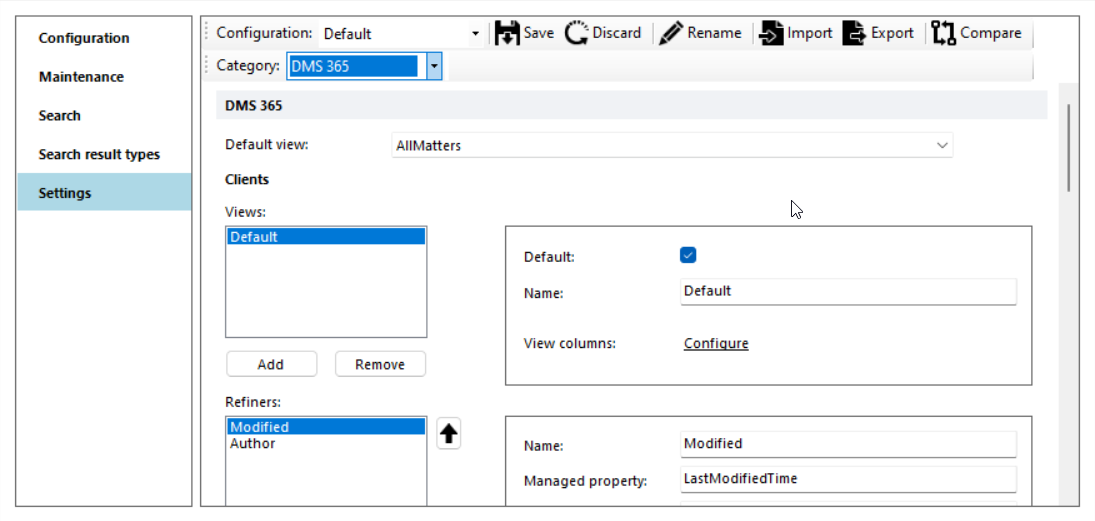
For each panel/view the columns and refiners can be configured. Click on Initialize with default settings to create default settings, that can be modified after they are created.
# Sidebar
The left navigation bar can be configured. Specify max 2 levels. The top level will only be rendered if there are subitems.
Use the localized keys to automatically translate the terms inside the Title and Tooltip.
Currently two types are supported. Based on the url the correct type will be configured.
- list
- iframe
To configure an iframe, specify an URL that will be rendered. If it's a relative url, the current sharepoint url will be automatically added.
To configure a list, use the following format list=view with the fixed view names:
- mydocuments
- recentdocuments
- mymattersdocuments
- favoritedocuments
- mymatters
- recentmatters
- allmatters
- favoritematters
- allclients
- allcontracts.


Icon
Specify the name of the icon. Possible values can be found here (opens new window).
Tooltip
Specify the tooltip
View Sharepoint Group Specify the name of the sharepoint group. If the current user is member of this group, the item will be visible. Use sharepoint groups from the sitecollection where DMSFL is installed.
# Search
The Epona DMS 365 app uses search to show all information from Sharepoint. By default there are no managed properties configured to return additional columns from the Matter List. Open the DMS Configu tool, click on Search and add the missing columns from the Matters List. This will take max 24 hours before the columns are crawled by Sharepoint.
# Caching
The settings for Epona365 are stored in the application storage of the browser. A background process will remove obsolete settings when the settings are too old.
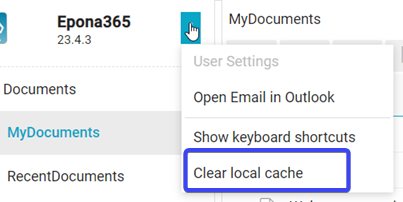
Most of the settings are automatically refreshed after a change. In some cases a duplicate reload of the app (browser) is necessary to have the latest settings. Use the menu option Clear local cache to manually clear the Epona365 cache.
# Columns
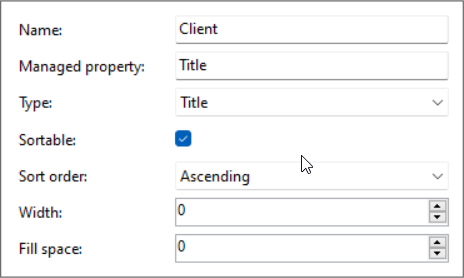
Name
Specify the column labelManaged property
Specify the name of the managed search propertyType
Title => the shortcut icon menu is shown. The column width will always auto-expand
Date => only the date part will be rendered
DateTime => the date value will be rendered with relative labels (like 2 hours ago)
Size => the value will be rendered with relative labels (like 1mb)
Teams => a team icon will be rendered if value is true
HasAttachment => a paperclip will be rendered if true
Importance => an importance icon will be rendered
To => rendered value has a fallback to managed property DMSSMTPTo / DMSToSortable
Specify if the property is sortableSort order
Specify the default sort orderWidth
Only specify a value (> 0) if the column should have a fixed widthFill space
Only specify a value (>0) if the columns should use all the available width (expand). If more columns have a value the width is spread over the columns with the relative value. If the first column has a value 1 and the second has a value of 2. The total width is divided by 3 and relatively spread over the two columns as configured.
A column that has SharePoint column formatting configured on it (for example a choice column shown as a coloured pill) renders with that formatting in the document list, matching how it looks in SharePoint — no separate setting needed here. Columns without formatting, and formatting using constructs Epona365 doesn't support, continue to show the plain value.
# Refiners
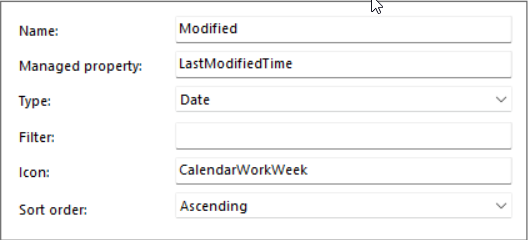
- Name
Specify the refiner label - Managed property
Specify the name of the managed search property - Type
Single select => only one refiner can be selected
Multiple select => one or more refiners can be selected and are used in the search with an OR statement
Date => pre-defined date values can be selected
User => one or more users can be selected. The items are rendered with a user image based on possible hit on email address - Filter
See the Microsoft Documentation (opens new window) for possible values. - Icon
Specify the name of the icon. Possible values can be found here (opens new window). - Sort order
If a descending order is specified and a filter specified, the sort is descending based on the frequency.
# Clients
Currently one view is supported. Specify which columns and refiners should be visible.
# Matters
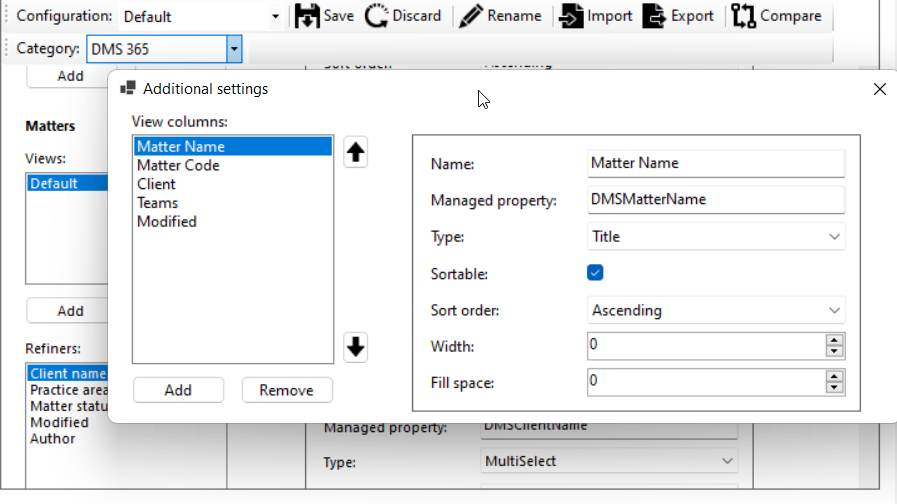
Currently one view is supported. Specify which columns and refiners should be visible. If the MatterName column is used in the MatterList, use that field as Title field. Sorting is not possible on the Title field.
# Content types
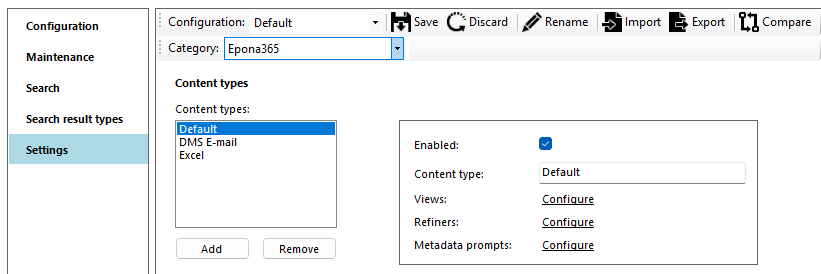
When documents are displayed, the view associated with the ‘Default’ content type is shown. If this content type does not exist, the ‘DMS Document’ content type is used as a fallback.
NOTE: Prior to version 25.9.0, the first (topmost) content type was used as the default.
In the Matter view the ClientName and MatterName columns will be automatically removed.
Add a second content type for email named 'DMS Email' to specify the columns and refiners when an email view should be used. The email view is activated based on the foldername, specified in the DMS Config section.
# DMS Config
The following settings that are set via the DMS Config tool are also used in Epona365.
# License
Copy the Client Name and Activation code from the SLM Portal (opens new window) when registering the product DMSfor365 and register/activate the license.
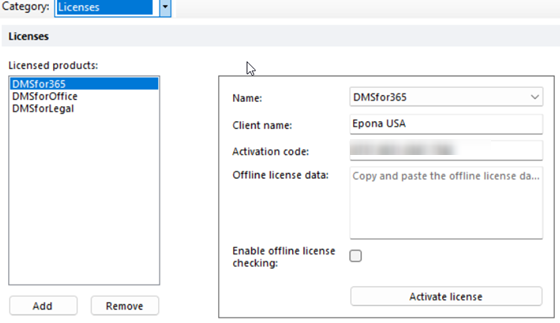
For every user that uses the application a license is automatically registered each time the application is started.
# Outlook
- Create Client/Matter
If enabled, the create client/matter button is visible. If no url is specified, the default URL is used (/Lists/Matters/NewForm.aspx?IsDlg=1)
If the open in new window option is enabled, Create Client/Matter opens the custom URL — or the default form withoutIsDlg=1— in a new browser window/tab instead of the in-app dialog. Use this for tenants whose portal blocks iframe embedding.
# Advanced search
- Search sitecollection
If no url is specified, the dmsforlegal sitecollection is used. Make sure a subsite Search is available. - Query text addendum
- Maximum Results
- Include results from all geo locations
For Multi-Geo tenants, includes search results from every geo location instead of only the local tenant geo. Every geo location's root site must grant Read to all users, otherwise results come back partial.
# Default ContentTypes
- File extension msg
The content types specified are used for the DMS E-mail view.
# Views
- Folder views
The DMS E-mail view is used when the name of the folder contains one of the specified foldernames.
# Notebooks
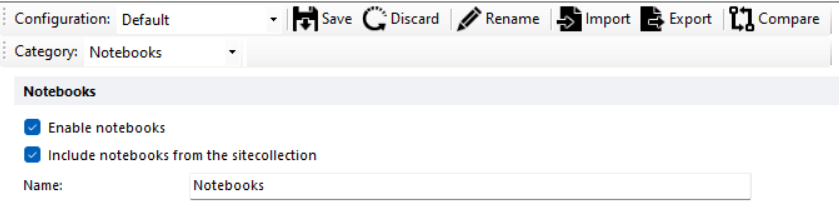
The notebooks settings are used in EponaDMS365
# Terms
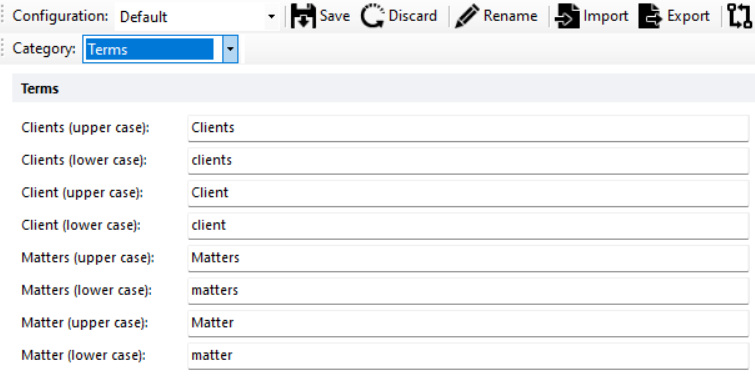
The Client and Matter terms can be renamed via the DMS Config.
# Contracts
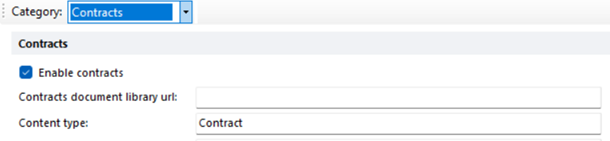
The Contracts module is active in Epona365 if the Contracts Document library URL or the Contracts ContentType is specified. Configure the columns and refiners for the ContentType in the Epona365 contenttype section.
- Contracts Document library URL
If specified, contracts are loaded from this library. Recent-changes is only applied in this mode. Required to create new contracts without prompting for a destination folder. - Contracts ContentType
If specified, contracts are surfaced via SharePoint Search across all libraries the user has access to, filtered by this content type. Results are security-trimmed.
If both are specified, results from both sources are merged and duplicates are removed. If neither is specified, the page shows an empty result set. If the configured ContentType returns no results, the grid shows No contracts found.
# Epona365 Urischeme extender
The Urischeme extended can be configured via the following settings:
- Disabled, option is not visible in Epona365
- Enabled, option is visible and enabled in Epona365 (the executable should be installed on all machines)
- Available, option is visible, but not enabled by default

# Sync to OneDrive
When enabled, a Synchronize with OneDrive option appears in the right-click context menu when right-clicking a matter in the matter view. Clicking it initiates the OneDrive sync via the odopen://sync/ URL scheme, which opens the OneDrive client and starts synchronizing the selected library to the user's local machine.
Configure this setting in DMS Config under Settings → OneDrive → Enable the 'Synchronize with OneDrive'-menuitem in Epona 365:
- Disabled — the option is not visible in Epona365
- Enabled — the option is visible and available in the shortcut menu
# Open PDF Files in Default PDF Application
Required Epona 365 WEB version 25.3.* Required DMS Configurator version 25.0.19.0
Inside DMS configurator go to settings - Category Epona365
Enable: Enable odopen (OneDrive open)
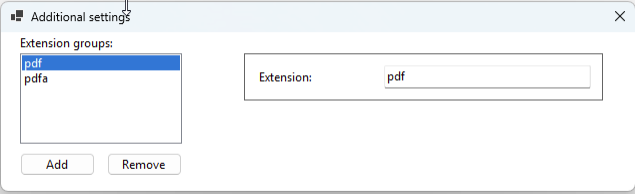
In odopen extensions: add Group name with name "PDF"

In extension add PDF and PDFA extension
# Document properties cards
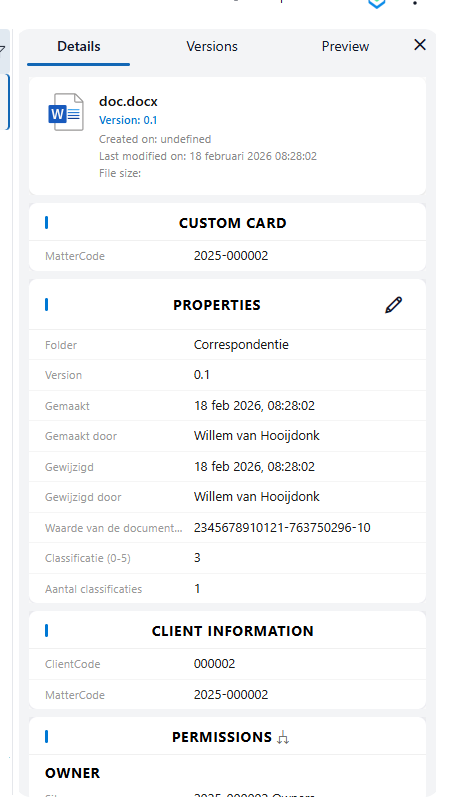
Document properties on the Details panel can be grouped into custom, reorderable cards using DMS Configuration Center.
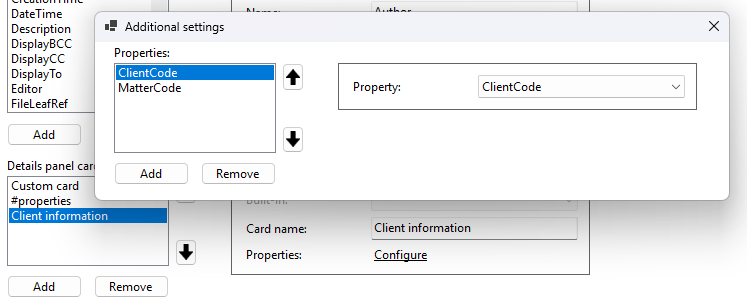
- Properties can be grouped into cards, each with its own heading.
- Cards — including the built-in Properties and Permissions sections — can be placed anywhere on the panel, in any order.
- Properties within a card can also be ordered.
- Properties already marked as cards keep showing exactly as before, and are folded into the card list the first time the configuration is saved, so nothing changes visually until an admin actually reorders something.
In the DMS Configuration Center, the Card checkbox on the Document properties grid is replaced with a Details panel cards list for setting this up.
In the document properties, you will then see these as:
# Managed metadata term path
For managed metadata (taxonomy) fields with more than one level, the Details panel of documents, matters and clients can show the full term path, for example Certificate of Malta Registry / Extention, the same way Epona365 Office does.
- The full path follows the SharePoint column setting Display the entire path to the term in the field (column settings → Display format). When the setting is off, only the term label is shown.
- Levels are shown top-level term first, separated by a slash with a space on each side (
Parent / Child). The term set name is not included. - A term at the top level of its term set shows only its label.
- A term reused from another term set shows the path of its place in this field's term set.
- Only the Details panel shows the path. Document list columns, exports and quick view still show the term label.
- After a term is moved or renamed in the term store, the parent part of the path can take up to 12 hours to update (for example, a change made during the day shows the next morning). Reloading the page may be needed if Epona365 has been open all that time.