
# Planner sets
Create one or more planners templates.
Inside the O365 Group set or Document library set when on O365 Group sites select the plannerset and a new planner will be created with the buckets and tasks.
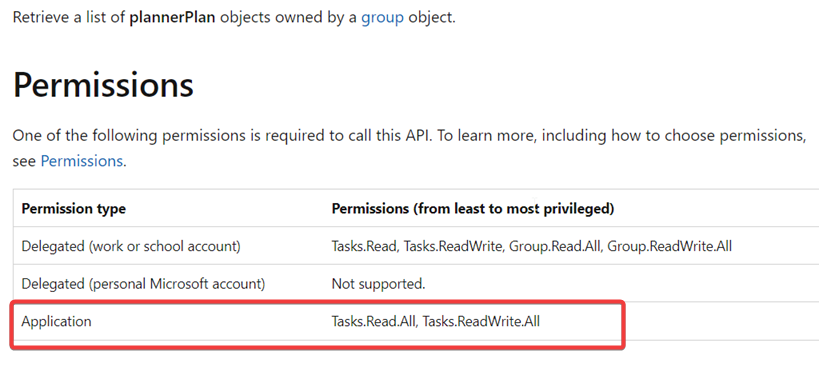
Make sure the current app has Tasks.ReadWrite.All permissions assigned.
# Epona 365 usage
Planner sets inside epona 365 need a new matter list column must be added for storing a link to the planner. This column must be single line of text. We suggest calling it PlannerURL for consistency. After this you must specify the column name using DMS Configuration Center (Epona web/site provisioning/Planner url column name).
# Buckets
Define the name of the buckets that should be added to the plan.
# Site Collection URL
Specify the relative site collection url where new planners are created. Optionally specify multiple urls separated by a ; for round robin planner integration. Microsoft limits 400 planners on a single site collection
# Categories
Define the name of the categories that should be added to the plan. To assign a category to a task set the corresponding Categorynumber to true.
# Tasks
Define the tasks that should be added to the plan.
- Title
Leave empty to use the default title from the matter - OrderHint
See description (opens new window) - Priority (not yet implemented)
Priority of the task. The valid range of values is between 0 and 10, with the increasing value being lower priority (0 has the highest priority and 10 has the lowest priority). Currently, Planner interprets values 0 and 1 as "urgent", 2, 3 and 4 as "important", 5, 6, and 7 as "medium", and 8, 9, and 10 as "low". Additionally, Planner sets the value 1 for "urgent", 3 for "important", 5 for "medium", and 9 for "low". - Start- and Duedate
See below - Assignments
Use zero or more users or specify a variable like{Owner};{Members}
# Attachments
Specify the url to the files. Use a relatieve file path (without a leading slash) to specify a file from the linked document library (for example General/Agreemeent.docx) or a server relative path (for example /sites/template/shared documents/general/agreement.docx)
# Checklist
Specify the zero or more textual values that are added as a checklist to the task
# Startdate and duedate
The start- and duedate can be defined with variables. Use the variable {today} to use the date of today. The used variable should be a valid DateTime value and can be combined with a formula to add/subtract days (D), months (M) or years (Y). For example:
- {today} => today
- {today}+M5 => today + 5 months
- {today}-M5 => today - 5 months
- {opendate}+7 => the date value of opendate + 7 days
- {opendate}+D7 => the date value of opendate + 7 days
- {opendate}+M7 => the date value of opendate + 7 months
- {opendate}-Y2 => the date value of opendate - 2 years