# Epona365 Mobile App Registration
# General Setup
- Sign into portal.azure.com and open Azure Active Directory
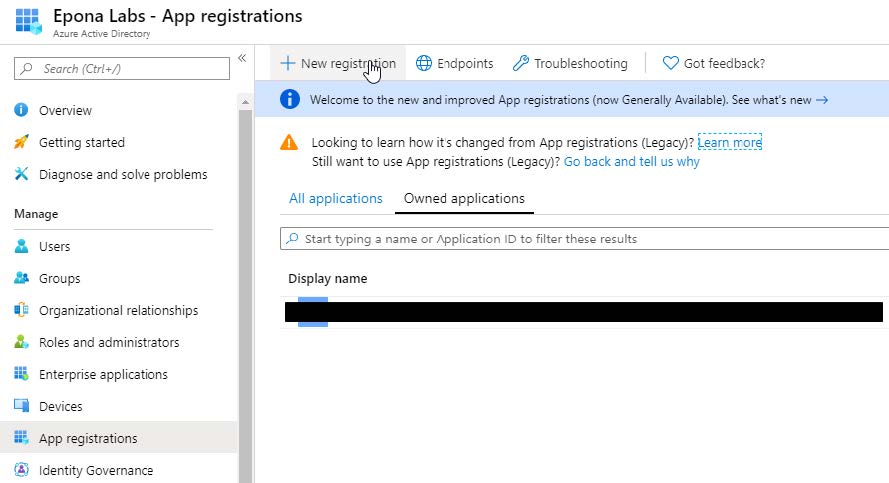
- Navigate to App Registrations, New Registration
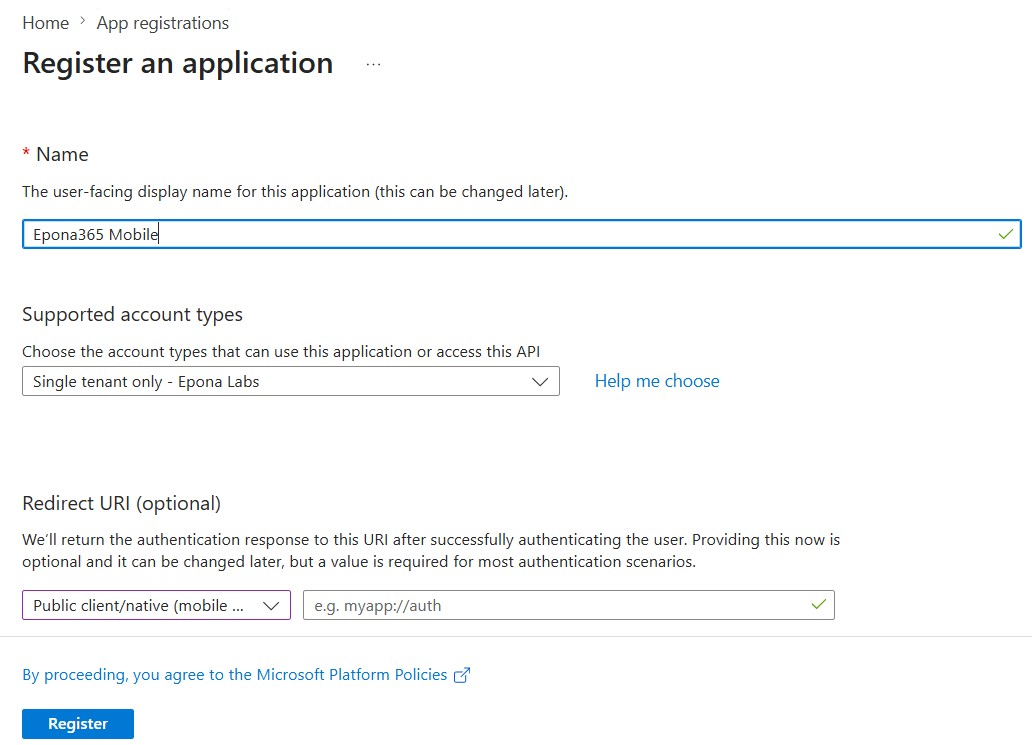
Name: Epona365 Mobile ,
Supported Account Types: Single tenant Only.
Redirect URI: leave blank
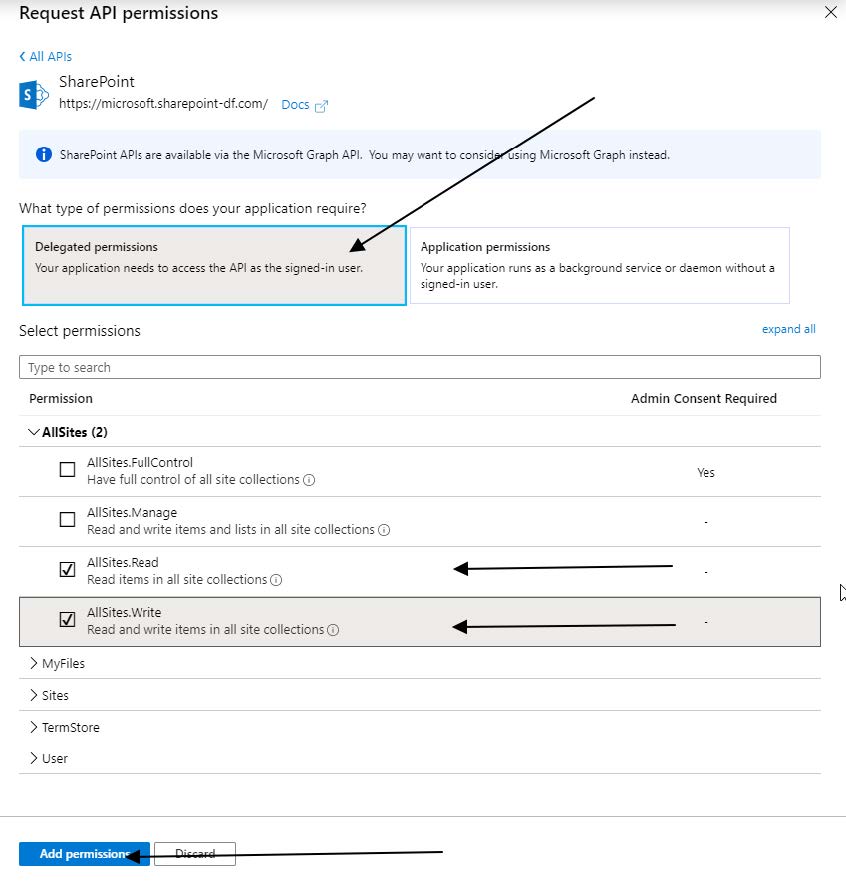
3.Now that the application is registered, we need to give it permission to access SharePoint. We will assign read/write permissions, the specific user permissions take over once the user is logged in. Open Manage, API permissions. Add a Permission, SharePoint
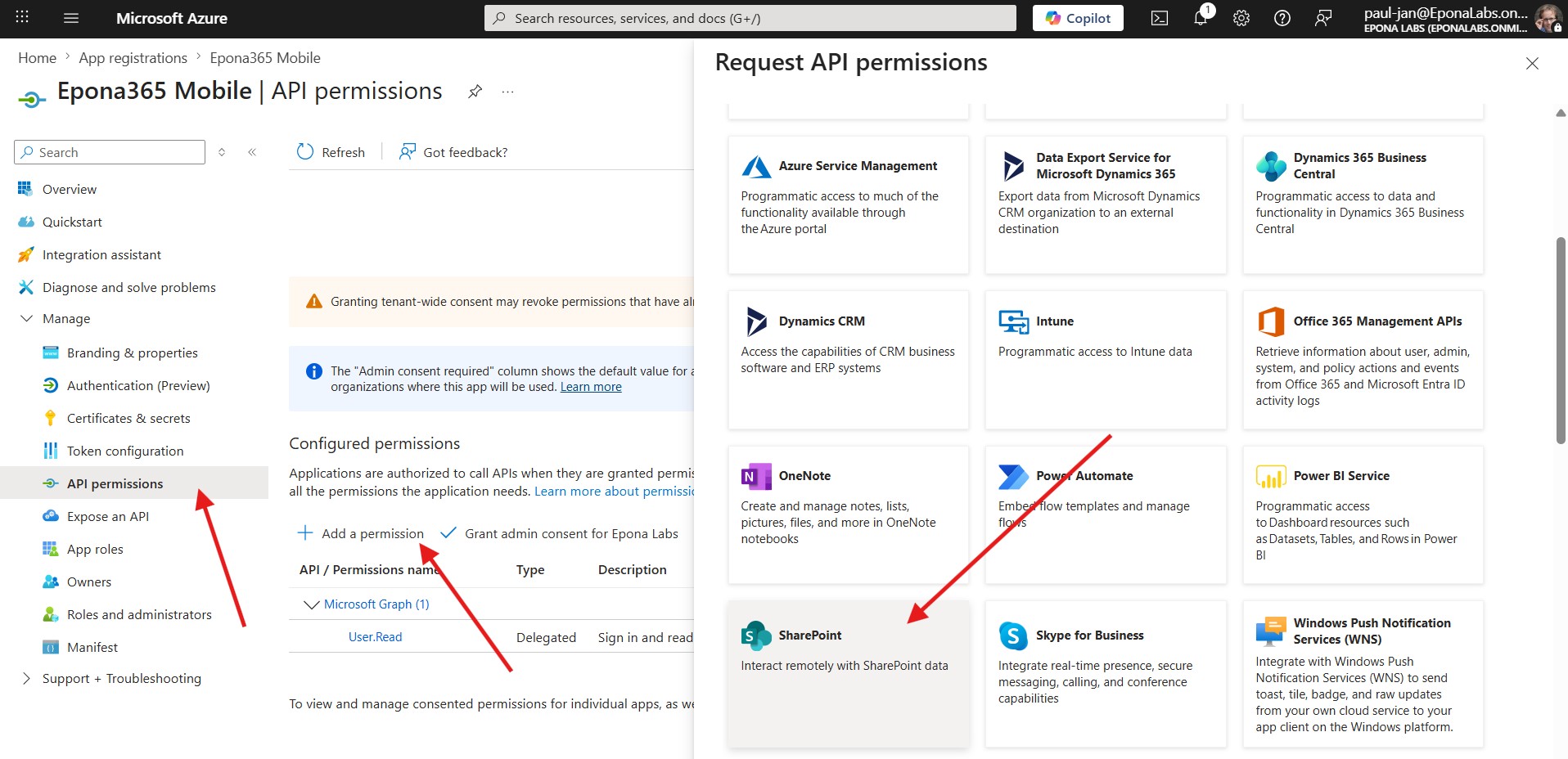
4.Delegated permissions, AllSites.Read & AllSites.Write
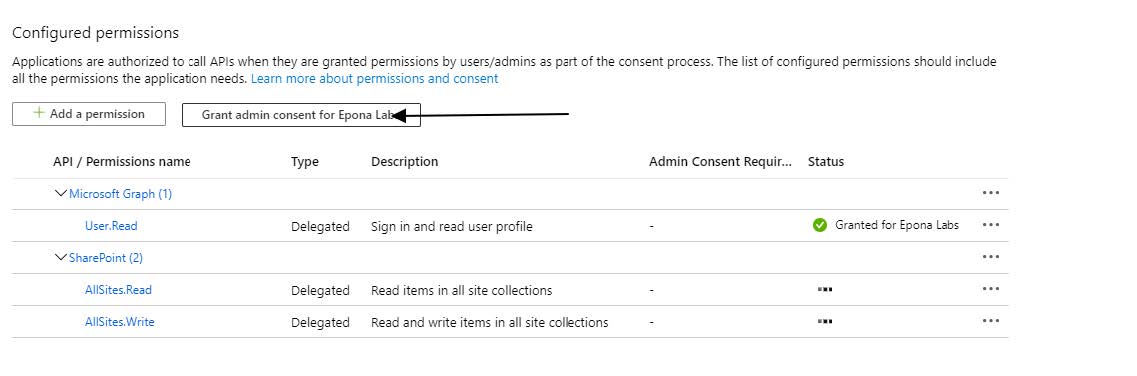
5.(Optional) Grant admin consent for these permissions. If this step is omitted, the users will have to grant their explicit consent when they connect with the mobile app.
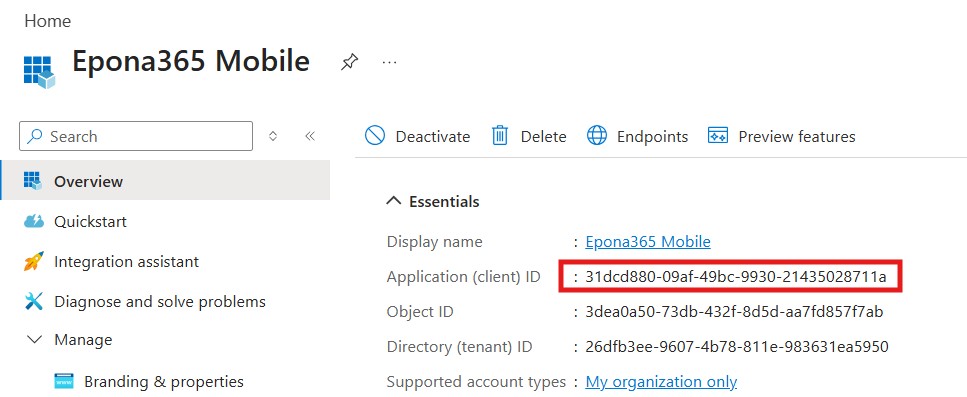
6.The app has now been successfully registered. Return to the app details screen and copy the generated Application Client ID. This is the ID that needs to be registered in the Epona365 Mobile app on all devices.
Note: while the app itself is now registered, access for iOS and/or Android needs to be specifically setup before users can log in from those platforms. See below.
# Configuring iOS access
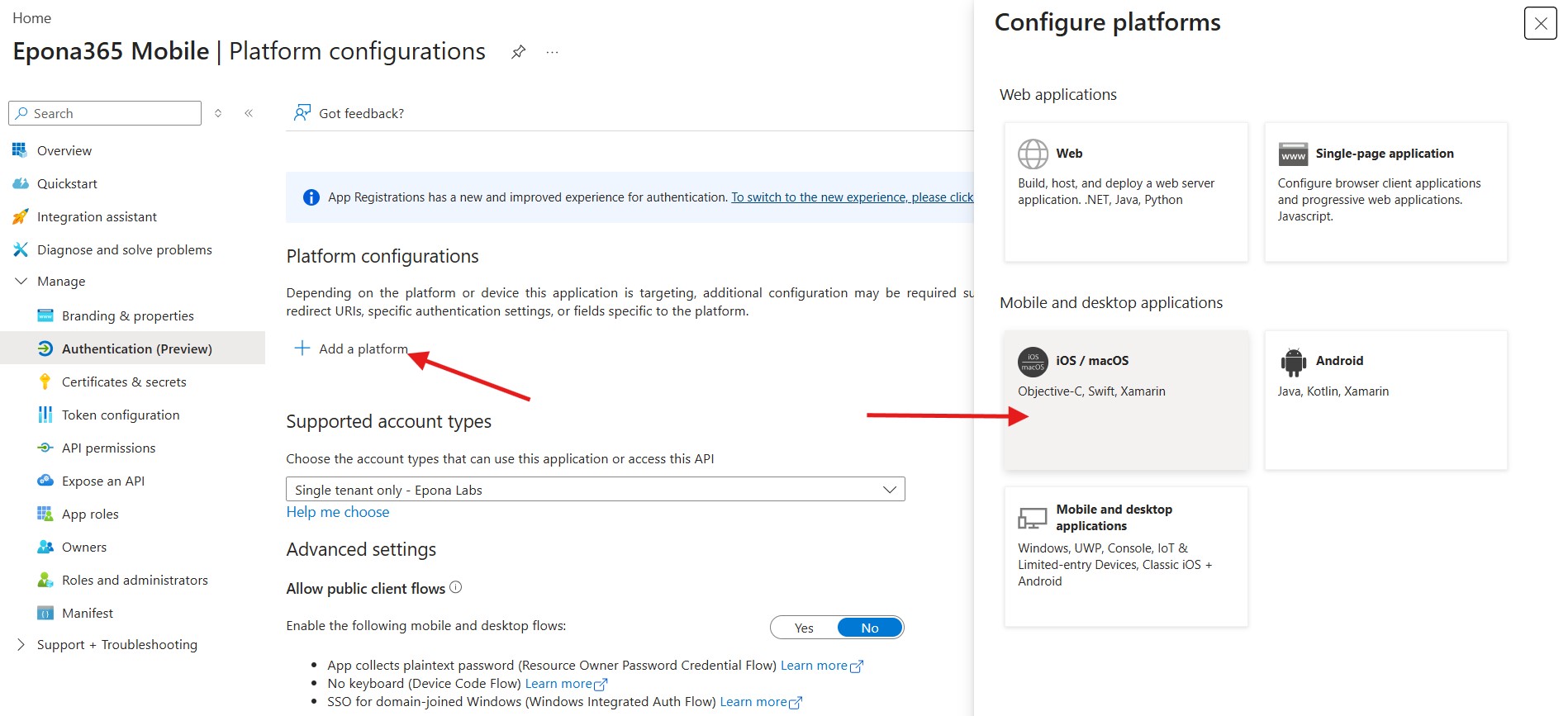
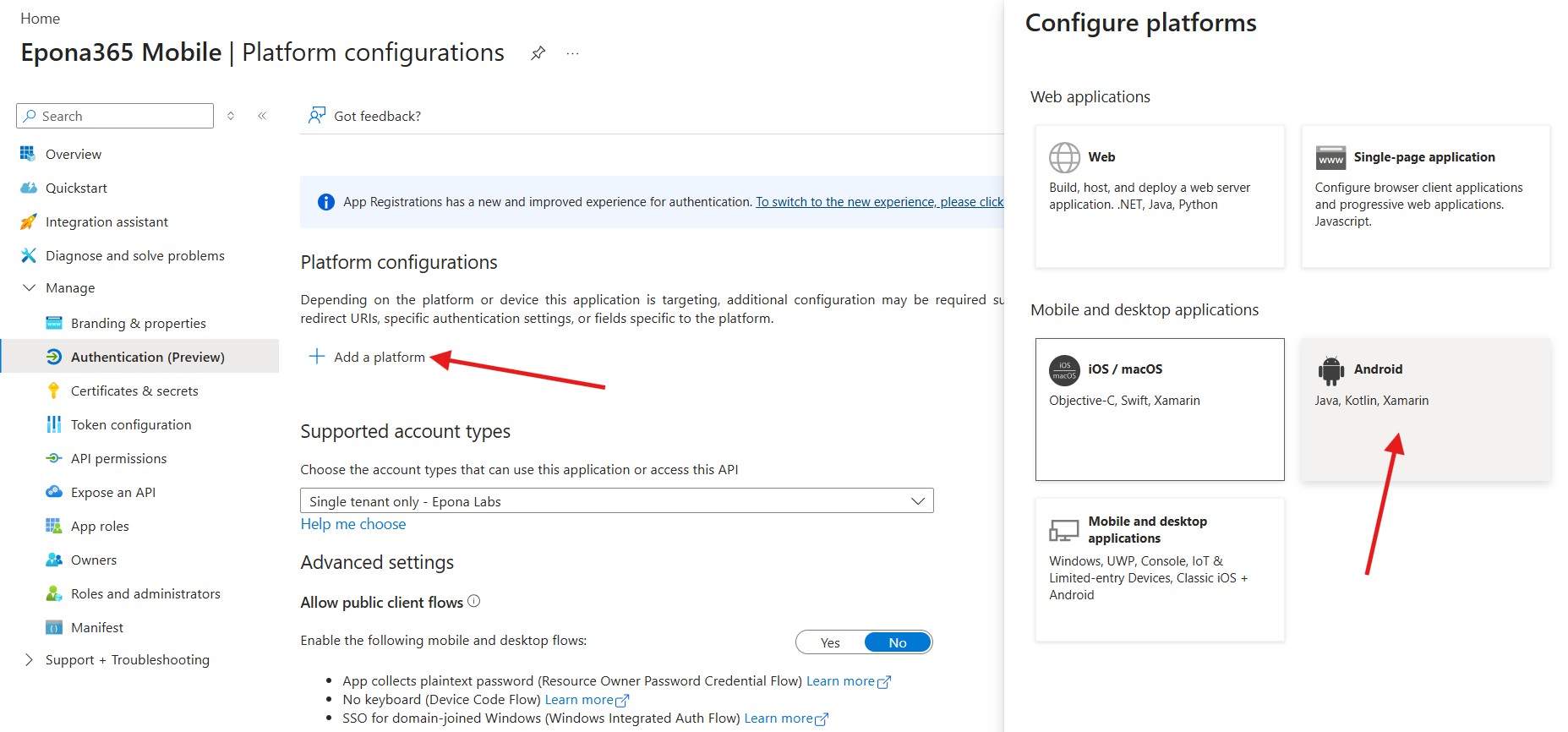
1.Open the Authentication screen. Add a platform, iOS / macOS
2.The bundle ID of the application is com.eponalegal.mobiledmsforlegal
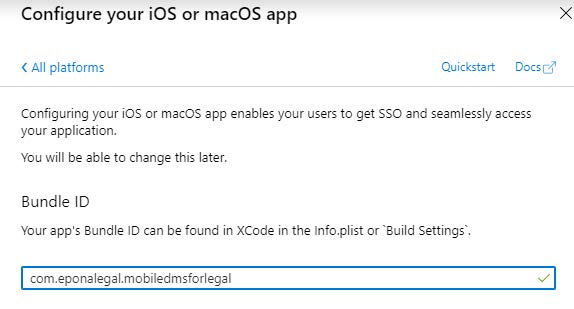
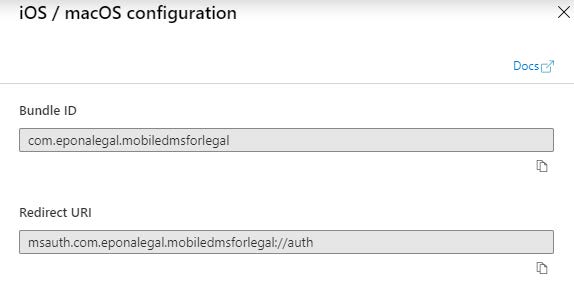
3.The configuration wizard will now automatically generate the correct redirect URI, msauth.com.eponalegal.mobiledmsforlegal://auth (older versions of the Azure AD Interface required manual configuration of this URL)
# Configuring Android access
1.From the authentication screen, add a platform. Select Android
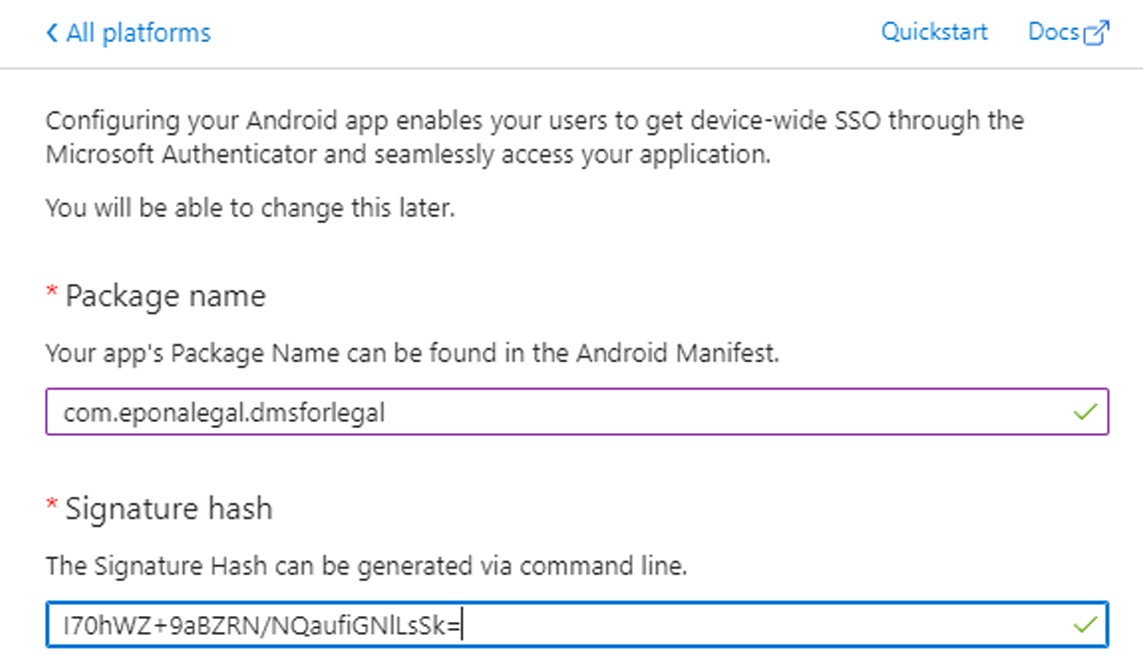
2.The package name is com.eponalegal.dmsforlegal The signature hash is I70hWZ+9aBZRN/NQaufiGNlLsSk=